


Copying information out of a PDF shouldn’t be a difficult matter. Yet, with some documents you can’t select text easily and with others the formatting is lost when you paste the content into another program. The good news is that you can overcome most of these problems by carrying out a few simple steps.
It is possible to save time when dealing with reports, study materials, business documents, invoices, and online forms by learning how to copy and paste from a PDF. In most cases, special software is not required since most computers come with the necessary tools for copying text and transferring it to another document.
The following guide shows you a number of practical ways of copying text, images, tables, and entire sections from PDF files. It also explains the steps you should take if copying fails. The instructions included here apply to Windows, Mac, web browsers, Adobe Acrobat Reader, Microsoft Word, Google Docs, and mobile devices.
No matter if you are a student, a professional, a researcher, or just a casual reader, these methods can simplify your everyday work.
What is the meaning of copying and pasting from a PDF?
To copy and paste is to select some information from one location and put it in another. For instance, you might copy a paragraph out of a PDF and paste it into Microsoft Word, or you could move a quotation into an email or transfer some figures into a spreadsheet.
A Portable Document Format, or PDF, ensures that the layout of a document remains the same on different devices and can include selectable text, images, tables, graphics, and scanned pages. Yet not all PDFs store information in the same manner.
In some PDF files you can select the actual text with your mouse, while in others the pages have been scanned and turned into images. With the second type you have to carry out an extra step if you want to extract the text.
This difference means that you can select the appropriate method. In the case of selectable text, normal copy-and-paste commands generally work; but if the page is an image you might need to use Optical 10 Best Tools for Summarizing PDFs Character Recognition, which is usually called OCR.
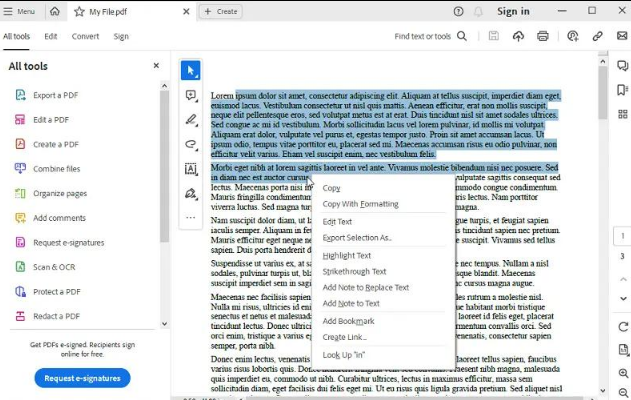
How to Copy and Paste from a PDF on Windows
Windows users have the option of copying PDF text using a keyboard, a mouse, or a PDF reader, the simplest method working in a number of popular applications.
Method 1: Use Keyboard Shortcuts
One of the quickest ways to copy information is by using keyboard shortcuts. Do the following:
Open the PDF file using a suitable PDF reader or a web browser.
Look for the sentence or paragraph that you would like to copy.
Put your mouse pointer at the start of the text.
Highlight the words you need by clicking and dragging.
To copy the selected text, press Ctrl + C.
Open Word, Notepad, Google Docs, or another destination.
Click on the location where you want the text to be inserted.
To paste the content, press Ctrl + V.
The text you have chosen should now be in the new document; please check the result before proceeding with your work.
To copy all the content in a document, you should press Ctrl + A after having clicked somewhere in the PDF. But this shortcut works in different ways depending on the application; in some readers it selects only the current page whereas in others it selects all the text.
Method 2: Copy Text Using Your Mouse
You can likewise finish the process without memorising the keyboard shortcuts.
Start by opening the PDF and then move your cursor over the paragraph. Press and hold the left mouse button down, drag it across the text you want to select, and release the button when the selection is finished.
Now, with the highlighted area selected, click the right mouse button and select Copy. In your destination document, right-click at the location you want and choose Paste.
This approach is suitable in the case where only a short number of sentences are required and it also assists newcomers to see clearly which words they are moving.
If the cursor selects the whole page rather than individual words, then you should look for a text selection tool in the PDF reader; it is also possible for a hand-shaped cursor to move the page without selecting any text.
Method 3: Copy and Paste Without Original Formatting
Copied text may have with it unwanted fonts, colours, spacing, or background styles and this can cause your document to appear inconsistent.
To stop this happening, you should paste the content as plain text. In a number of Windows programmes, Ctrl + Shift + V gives access to a plain-text paste option. Nevertheless, support differs from application to application.
Another option is to first paste the content into Notepad. Then copy it from Notepad and paste it into your final document; this will remove most of the rich-text formatting.
It is particularly useful to use plain-text pasting for blog drafts, research notes, emails, and website content; once you’ve pasted the text, you can then insert your own headings, paragraph spacing, and font styles.
How to Copy and Paste from a PDF on Mac
Users who have Macs can carry out almost the same procedure, the only difference being the keyboard shortcut.
Method 1: Use Command Shortcuts
Follow these simple instructions:
Open the PDF file using Preview, Adobe Acrobat Reader, or a browser that is supported.
If you need to, use the text selection tool.
Just click on the text that you would like to copy and drag it.
On your keyboard, press Command and C.
Open the document or programme in which you want the text to be placed.
Select the destination and then press Command + V.
The text that you have copied should now be in the place that you selected. Make sure to check the spacing and punctuation to verify that everything has been transferred correctly.
To select all of the text that is available, you should press Command + A while the PDF reader has focus. Just remember that certain programmes will select only the text on the current page.
Method 2: Use Preview on Mac
Preview is an application that comes as part of macOS and can be used to copy selectable text without the need to install another program.
To open the PDF in Preview, move your cursor over the text and drag to highlight the section you want. Then, either select Edit > Copy from the menu or press Command + C.
Start using Open Pages, Microsoft Word, Notes, or some other program. Put the cursor at the location where you want the text to go and then paste it.
If Word Preview isn’t selecting individual words, verify that the PDF includes a scanned page; in this case, you’ll need OCR in order to convert the image into selectable text.
Method 3: Keep or Remove Formatting
If you paste some text into a Mac programme the outcome could have the original formatting, for example the font size, bold type and odd spacing.
If you’re aiming to achieve a consistent look, you should select a paste-and-match style in the programme you’re using. The specific command will depend on the programme.
Another option is to first paste the text into a plain-text editor. Then transfer it to your final document and apply the formatting that you prefer.
How to Copy and Paste from a PDF Using Adobe Acrobat Reader
Adobe Acrobat Reader is well known as a tool for opening and reading PDF files, and it includes text selection features which make it easy to copy the text when the document permits it.
Step-by-Step Instructions
On your computer, open Adobe Acrobat Reader.
Go to File and select Open then pick your PDF.
Find the text you want to copy.
The Select tool should be activated if needed.
Move your pointer over the words that are required.
Highlight the text and then right-click to select Copy.
Open your destination application.
Use the relevant keyboard shortcut to paste the content that has been copied.
Carefully examine the pasted result since some PDFs include columns, footnotes, or complicated layouts which may not retain the same reading order.
How to Copy a Large Amount of Text
Copying out a long report one paragraph at a time involves a good deal of work. When it comes to bigger projects, it might be more sensible to export the PDF into an editable format.
If your version of Acrobat and your subscription include the export features that allow you to convert PDFs into Word, Excel, or other formats, then you should open the conversion tools that are available and select the format you need.
Once it has been converted, check the document to make sure that the tables, page breaks, columns, and any unusual fonts have been properly adjusted.
The official guide entitled Copy content from PDFs describes the methods that are available.
How to Copy an Image or a Section of a PDF
At times a chart, diagram, or screenshot is more appropriate than editable text.
Acrobat includes tools which allow you to select visual content; in your version you can choose an image or use the snapshot feature to capture a rectangular area of a page.
To select the required content, copy it and then paste it into a compatible application. If the image does not transfer properly, use the reader’s save or export function instead.
It should be noted that a snapshot usually produces an image not editable text; although you can alter the size of the image you can’t edit the individual words in it as you can with regular text.
How to Copy Text from a PDF in Google Chrome or Microsoft Edge
You aren’t always obliged to use a separate PDF application since modern browsers are able to display a great many PDF files directly.
Copy Text in Google Chrome
Open Google Chrome.
Open the PDF file from your computer or from a web link that you can access.
Hold on until the document has loaded.
Position your pointer over the required text.
Highlight the words by clicking and dragging.
On Windows press Ctrl + C and on the Mac press Command + C.
Open the destination and copy the text therein.
If you’re unable to select the words, then verify if the page is a scanned image; you might also try downloading the PDF and opening it in a different reader to see whether the problem is due to the browser.
Copy Text in Microsoft Edge
Microsoft Edge has a built-in PDF viewer as well.
In Edge open the PDF and use your mouse to select the text you need. Then right-click on the selection and pick Copy, or use the keyboard shortcut.
Now, move on to the application that you want to use and paste the content there. If there are any extra line breaks in the selected text, get rid of them after you have pasted it.
Browser tools are useful when carrying out occasional tasks, but a specialist PDF reader might provide more features when dealing with JPG to Word complex documents, selecting images, or exporting large quantities of information.
How to Copy and Paste a Scanned PDF
Since it displays the words in a normal way on the screen, a scanned PDF can be confusing. The page might in fact be stored as an image.
When you drag your mouse across the page, you might not select anything. Sometimes, you can only select the whole image. This happens because the file does not have a usable text layer.
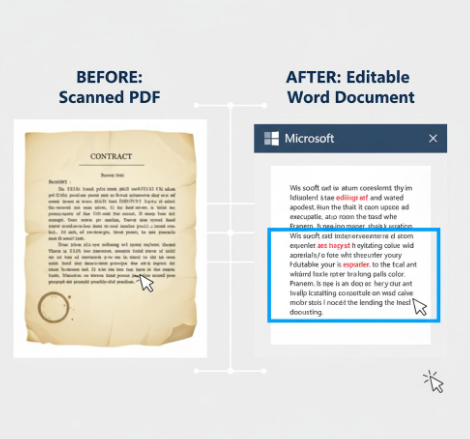
The answer is Optical Character Recognition, often abbreviated as OCR. This technology looks at the letters in an image and turns them into text that can be understood by machines.
Method 1: Use Google Drive and Google Docs
Google Drive can pull text from some scanned documents. The results depend on the image quality, layout, and file type.
Follow these steps:
Log into Google Drive through your web browser.
Upload the scanned PDF.
Locate the uploaded file.
Click the file with the right mouse button and look at the available options for opening it.
If the Google Docs option is available for that file then select it.
Let Google Docs handle the document.
Review the extracted text.
Choose the content that is needed and copy it.
Copy it into your target document.
The original format does not have to be exactly the same. Tables, columns, and images too can look different.
To achieve better results, make sure that the scan is clear, the text is legible, and the pages are properly aligned. For more details, refer to Google’s guide on converting PDF and photo files into text.
Method 2: Use OCR in Adobe Acrobat
Adobe Acrobat includes OCR facilities in the versions that are supported. These tools are capable of detecting the text on scanned pages and making it searchable or selectable.
Open the scanned PDF in a compatible version of Acrobat and then locate the Scan & OCR tools, selecting the one that enables text recognition in the document before following the on-screen instructions.
Once it has been processed, please attempt to select the text again; if recognition is working properly, you will be able to copy the text into another programme.
Make sure to verify all names, numbers, dates, and special characters since OCR may misread letters and digits that look similar, particularly in poorly scanned images.
Method 3: Use an Online OCR Tool
It is possible for online OCR services to extract text from certain image-based PDFs, and they can be useful in the case where you don’t have desktop conversion software.
Before you upload a file, make sure you have read the service’s privacy policy and security practices. Do not upload confidential contracts, identity documents, financial statements, or sensitive business records to a website you are not familiar with.
Select a tool that is compatible with your language and file type. Once the conversion has been carried out, check over the extracted content and make any necessary corrections.
How to Copy Tables from a PDF into Excel
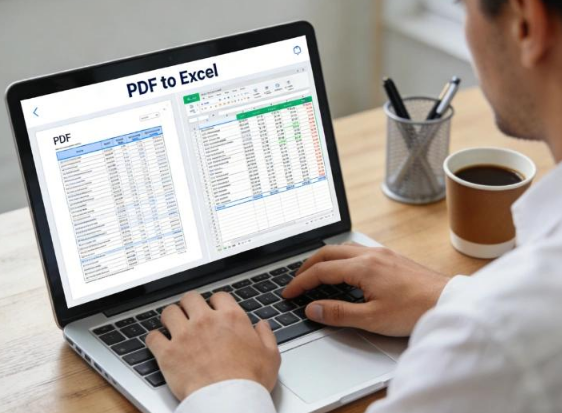
Tables typically contain figures, dates, names, and other kinds of structured information, and it is possible to save time by copying them directly into a spreadsheet; however, the outcome will vary depending on how the PDF was produced.
Method 1: Select and Copy the Table
To view the PDF, use a reader that has text selection facilities. Select the text in the table by dragging across it and then copy the highlighted text.
To open Microsoft Excel and select the cell in which the table is to begin, then paste the content and check the result.
If the values are in a single column Excel might not have detected the table format. In this case you can use Excel’s text splitting tools to split up the content into separate columns.
Method 2: Export the PDF to Excel
When there are a lot of rows in the table, it is easier to export it than to select all the items manually.
Convert the document using a PDF conversion tool that has spreadsheet output capability and select Excel as the destination format.
Check the completed worksheet for any missing values, merged cells, and wrong column placement. Special care should be given to the financial data since a single misplaced decimal point can affect a calculation.
Method 3: Correct Formatting Problems
PDF tables usually depend on spacing instead of using real spreadsheet cells, which causes copied values to be misaligned.
In order to deal with this problem, verify the number of columns and compare a number of rows with the original one. Get rid of any unnecessary spaces and line breaks and then format the dates, currency figures, and numerical values appropriately.
Just because a table has been pasted does not mean that it is accurate; check the important information before using it in reports or in calculations.
How to Copy Images from a PDF
PDFs frequently contain photographs, charts, diagrams, logos, and screenshots. In some cases you can copy these items directly, but with others you have to use a different approach.
Copy an Image with a PDF Reader
Find the PDF and look for a selection tool which deals with images; then click on the image or drag over the area you want to select.
When the reader chooses the Copy option, select that option. Next, open the destination and paste the image there.
It is not the case that all viewers support the copying of images. In that situation, you should look for an image export or save function.
Capture a Specific Area
A snapshot or screenshot is useful if you need a specific part of a page, for instance if you want to include a chart in a presentation.
Take the screenshot function available on your computer or use the snapshot feature of the PDF reader. Choose the area you need and then save or copy the image.
It should be remembered that when screenshots are enlarged they can lose some of their detail. Where an original image file is available, it should be used for professional presentations.
Moreover, when reusing images from a PDF you must respect the copyright and licensing conditions.
How to Copy and Paste from a PDF on a Mobile Phone
You are also able to copy the text from a PDF on both Android phones and iPhones, although the specific steps will vary according to the PDF application you are using.
On Android
Open the PDF using a reader that is compatible.
Press and keep your finger on a word in the document.
Adjust the selection handles so as to include the text that you need.
Tap Copy.
Open your notes app, document editor, or message.
Select the area where you want to paste.
If the programme doesn’t permit text selection, then use a different reader or apply an OCR method to the scanned pages.
On iPhone or iPad
Open the PDF using the Files app, the Books app, or another compatible PDF reader.
Touch and hold a word.
Adjust the selection handles.
Click on Copy if the option is available.
Open the destination app.
Paste by selecting the text area.
Certain PDF viewers include only a limited set of selection tools; if copying fails then try the file in a different application.
What if you need the whole page?
If you need to see how a page looks rather than just its text, then take a screenshot or use the image export function. While this method keeps the visible layout, the resulting file will not be editable like ordinary text.
In the case of longer documents, it is generally more practical to use OCR or carry out file conversion.
What Prevents Me from Copying Text from a PDF?
The trouble usually lies in the file, the programme, or the way the selection is made when simple copy-and-paste doesn’t work.
The PDF consists of a scanned image.
A scanned page might not include any text that can be selected. You should use OCR to recognise the words before trying to copy them.
The PDF contains restrictions on copying.
Certain document makers set security options which prevent copying or other actions. You should verify the document’s permissions in your PDF reader.
If you have the authority to access the content, then ask the document owner for an unrestricted version or use one of the approved methods offered by the owner.
It is not advisable to try to circumvent security controls without having permission.
3. You are using the incorrect selection tool.
Instead of selecting words, a hand tool moves the page. Try again by switching to the text selection tool.
4. The PDF is damaged
A file that has been corrupted might not function as it should so download it once again from a reliable source or ask the person who sent it for a new copy.
5. There is a temporary issue with the application.
You can either close the PDF reader and then reopen it or try using a different browser or PDF application.
The problem might be particular to the original program if copying works in other cases.
6. The Text That Has Been Copied Appears to Be Wrong
Certain PDFs have odd reading orders or intricate layouts, and the text that has been copied might include missing spaces, additional line breaks, or columns in the wrong place.
How about choosing smaller sections? In the case of complex files, you should export the document into an editable format and make the necessary corrections yourself.
Tips for Better Copy-and-Paste Results
A few simple habits will help you to avoid common problems.
Chose only what is necessary. Small selections are easier to check and are less likely to contain unnecessary headings or footnotes.
Before you paste, make sure you’ve selected the right destination. Click within the appropriate document, email, spreadsheet, or text field.
It’s appropriate to use plain text. This helps get rid of any unwanted formatting and makes it easier to edit when the text is copied.
Go through the result and check the names, dates, numbers, and punctuation again in relation to the original PDF.
It’s important to keep a backup; make sure you save your working document prior to carrying out extensive changes.
For image-based files select OCR; there is no point in spending time highlighting words which exist only as pixels.
Keep your private information safe. When you are dealing with sensitive documents, use reliable applications. Make sure to carefully check any online service before uploading files.
Respect copyright; just because you copy text Document Review for your own reference doesn’t mean that you have been given the right to republish it. You must follow the relevant copyright rules, licences, and attribution requirements.
Frequently Asked Questions
1. What is the quickest way to copy and paste from a PDF?
To open the PDF, select the text you need and press Ctrl + C on Windows or Command + C on the Mac. Then, open the destination file and press Ctrl + V or Command + V.
Why is it that I can’t select text in my PDF?
The document could include scanned images instead of real text and might also have copying restrictions or be viewed using a program that doesn’t offer many selection options. In that case, try a different reader or use OCR if the page has been scanned.
3. Is it possible for me to copy an entire PDF at one time?
At times, open the PDF in a program that is compatible and if the software provides this option use Select All. Then carry out the copying of the selected text. However, the result may not include the images and might not retain the original layout.
How can I copy text from a scanned PDF?
Use an OCR tool to recognise the text; Google Drive together with Google Docs and certain versions of Adobe Acrobat can be of assistance with some scanned files, and you should check the extracted text for any errors.
5. Is it possible to copy a PDF into Microsoft Word?
Yes, it is possible to select the text in a PDF and then paste it into Word; or else you can use a PDF conversion tool that is compatible to produce an editable Word document.
6.How do I copy a table from a PDF into Excel?
If the PDF allows text selection, choose and copy the table. Paste it into Excel and then check the columns. In the case of large tables, a PDF-to-Excel conversion tool might provide a better starting point.
7.How can I copy some text without copying its formatting?
To paste the text, use the plain text option when your destination allows it. Another option is to paste it into Notepad first and then copy it into your final document.
8. Is it possible to copy text from a PDF that is protected by a password?
This will depend on the permissions attached to the document and the kind of protection it has; if copying is prohibited, then you should contact the owner or ask for an authorised copy. You must not ignore the access controls without having permission.
9. Is it possible for me to copy and paste from a PDF on my phone?
Certainly. Open the file using a mobile reader that is compatible with it, touch and hold a word, make adjustments to the selection, and then tap Copy. After that, open another application and select Paste. Pages that have been scanned might need OCR.
10. Why is there text in copied PDFs with odd spaces?
The text in PDFs can be arranged in a format that is suitable for displaying rather than for editing. The number of columns, the line breaks, and the use of odd fonts can all have an effect on the copy. In this case, it is advisable to copy smaller sections or to convert the PDF into an editable format.
11. Is it possible to copy images from a PDF?
Yes, provided that your PDF reader has the facility for selecting or exporting images. You can alternatively take a screenshot of the relevant area. Just remember that screenshots produce images, not editable text.
12. Is it safe to use an online PDF converter?
This will vary according to the service and the information contained in your file. It is advisable to look over the provider’s privacy and security policies before uploading any files. When it comes to confidential documents, you should use an approved offline application.
Conclusion
Learning to copy and paste from a PDF simplifies all kinds of everyday digital tasks. For example, you can paste text into Word, transfer diagrams into Excel, copy quotations into your notes, and reuse images in presentations.
For regular PDFs, select the text you need and use the normal keyboard shortcuts; on Windows you can press Ctrl + C and Ctrl + V, and on the Mac people use Command + C and Command + V. The same options are available in browser viewers and on desktop PDF readers.
Nevertheless, in the case of scanned PDFs a different method is needed. OCR is capable of recognising text in an image and making it available for copying. When it comes to long reports or complicated tables, converting the PDF into an editable format might help to save time.
Select the method that corresponds to your document and then check the copied content for any formatting problems and errors. This will make you more confident and efficient when copying PDFs.