


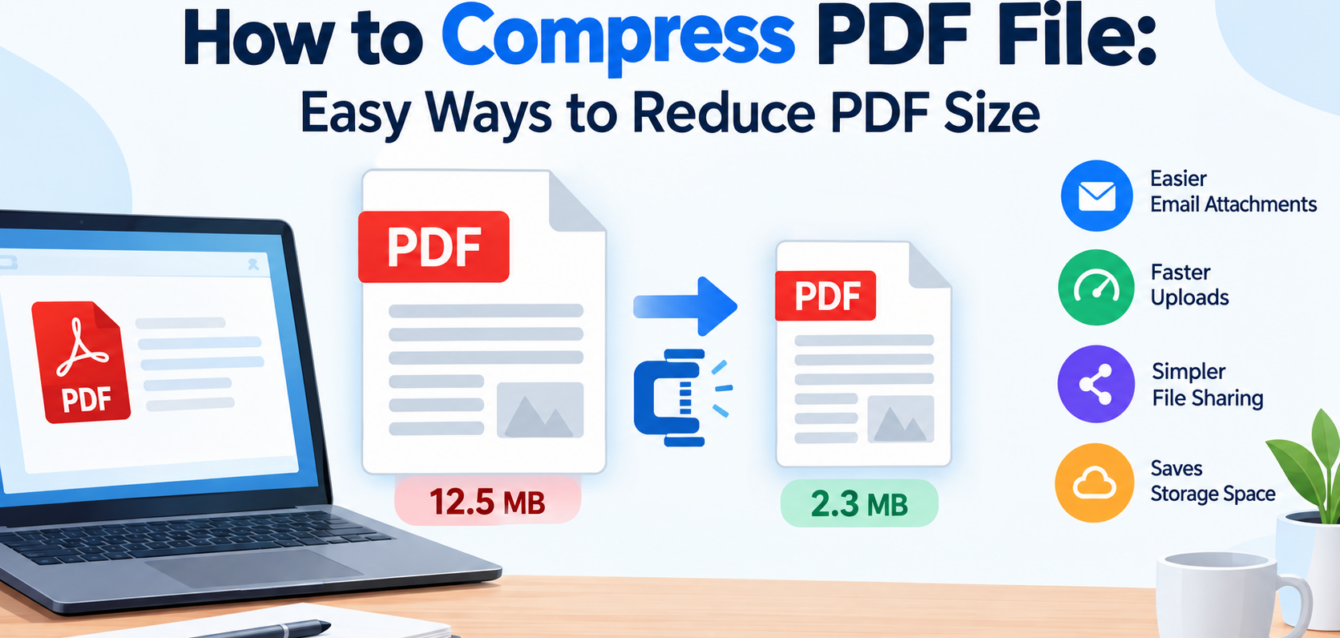
Large PDF files can be difficult to upload, share, or send through email. If you want to learn how to compress PDF file, there are several simple methods that can help reduce the file size while keeping the document readable and useful. PDF compression is especially helpful when a file contains high-resolution images, scanned pages, or other large elements.
If you want to find out how to compress a PDF file in such a way that the document doesn’t become hard to read, there are various practical methods on offer. When you compress a PDF it reduces the amount of data contained in the document while at the same time aiming to maintain its readability, appearance and functionality.
The guide explains how PDF compression works, how to compress PDF files on different devices, how to reduce the size of PDFs without greatly affecting the quality, and the things you should check before sharing a compressed document.
What does it mean to compress a PDF file?
When a PDF is compressed, its file size is decreased without in any way reducing the usefulness or readability of the document. A PDF may contain text, photographs, scanned pages, graphics, fonts, forms, hyperlinks, and other elements. In certain instances the different components have data which is unnecessary or excessive and for that reason the file ends up being larger than it has to be.
A PDF compressor is able to detect the sections of the file that can be improved; for instance, large images can be decreased in size or compressed, any unused objects can be deleted, and the embedded resources can be optimised.
The degree of compression that can be achieved varies from document to document; for example, a straightforward text-based PDF might already have a fairly small file size, whereas a scanned document made up of dozens of high-resolution pages could be considerably larger.
How to Compress PDF File Quickly
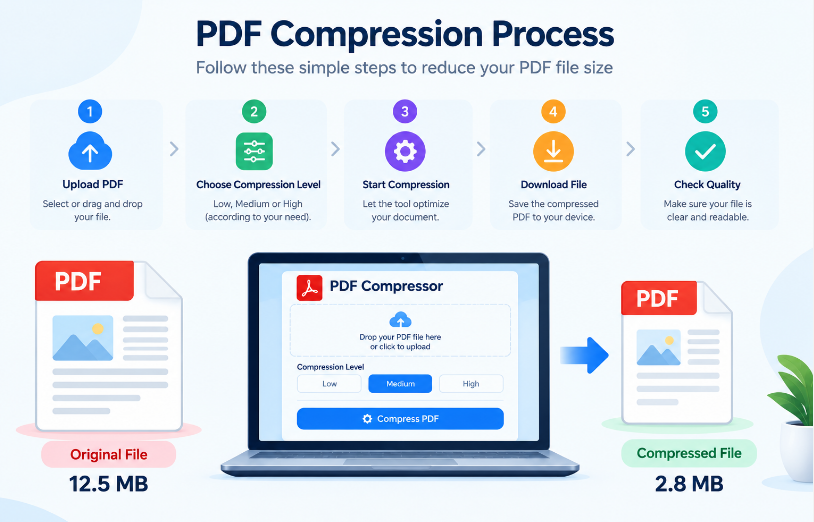
The easiest way to compress a PDF is usually to use a free tools to view PDF most of which operate by carrying out a simple procedure.
Select or upload your PDF file.
Select a compression level when there is more than one available.
Start the compression process.
Let the tool carry out the optimisation of the document.
Get the compressed PDF or save it.
Look at the new file to judge how good it is.
Some tools offer compression settings which are low, medium, and high. In general, low compression manages to preserve more quality while high compression is intended for producing a smaller file size.
In documents consisting mainly of text, fairly heavy compression is probably likely to have only a small or invisible effect; but with respect to portfolios, brochures, presentations and scanned documents, strong compression may cause images or small text to become blurry.
If you have reduced the size of the document and wish to share it online, you can also find out how to create a link to a PDF as an alternative way of making document sharing more convenient.
What are you supposed to do in order to compress a PDF?
There are various practical reasons why the size of a PDF file should be reduced.
Easier Email Attachments
Email services typically set a limit on the size of attachments; if your PDF file is bigger than this limit it may be impossible to attach it directly.
It is possible to compress the document and remain with the PDF format, which makes it easier to send. This is particularly useful in the case of reports, applications, invoices, presentations, and business documents.
Faster Uploads
Uploading large files takes a longer time, especially if you’re using a slow or unreliable internet connection; it will therefore be quicker and more convenient to upload a smaller PDF.
It is useful each time you send documents through job portals, educational websites, online forms, and business systems which have strict upload limits.
Easier File Sharing
It is usually simpler to send smaller files by means of messaging applications, cloud storage services, and other file-sharing services.
If a document is such that it cannot be sent directly, reducing its size eliminates the need for any further file-sharing steps.
Saves Storage Space
You are also able to free up space on your computer, smartphone, external drive, or on cloud storage by compressing multiple PDF files.
Even if you are regularly dealing with hundreds of documents, the small amounts of space that you save on each file can add up to substantial storage savings.
How does the process of compressing PDFs work?
PDF compression reduces file size by enhancing the features that affect it, images being one of the principal contributors.
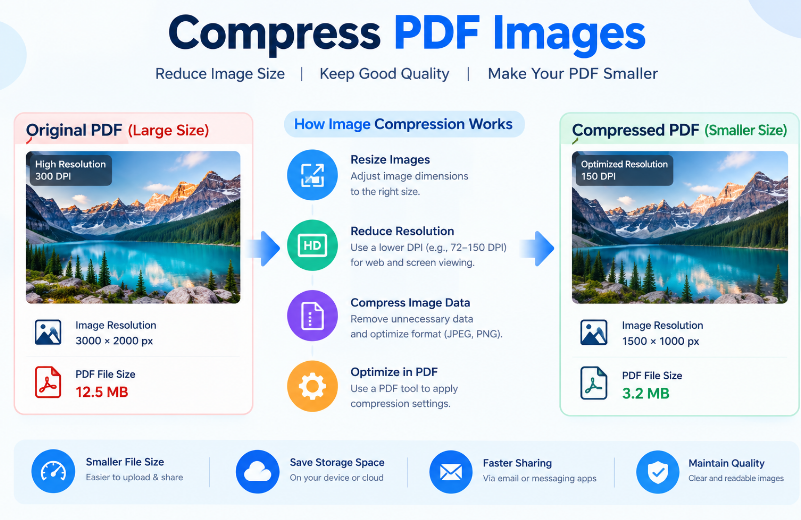
For example, a photograph saved at an extremely high resolution contains a great deal more information than is actually necessary for viewing on a computer screen, and reducing its resolution can greatly decrease the total size of the PDF.
Other optimization techniques may include:
Reducing image resolution
Compressing image data
Removing unnecessary metadata
Removing unused objects
Optimizing embedded fonts
Simplifying document resources
Removing duplicate resources where possible
Compression is generally divided into two categories: lossless or lossy. With lossless compression, care is taken to retain the original information, while with lossy compression some of the information is discarded in order to achieve a greater reduction in file size.
The method you select will be determined by the purpose of the document; for example, a legal document may require greater readability and better preservation, while a casual presentation can tolerate more severe image compression.
How to Compress PDF File Without Losing Quality
Many people would like to reduce the size of their PDF file without it becoming blurry or difficult to read. The key is to find a suitable balance between file size and quality.
Choose Moderate Compression
Do not immediately select the most powerful compression option; rather, start with a moderate setting and then compare the resulting document with the original.
If the file is still too large, you can produce another version using more powerful compression.
Keep Important Images Clear
Pay special attention to the photographs, the charts, the diagrams, the signatures, and the scanned pages.
A document may seem satisfactory when seen at its normal size but can have important details lost when you zoom in on it, so it is essential to examine all the images and graphics before sending the final version.
Check Small Text
Small text is especially vulnerable to aggressive image compression; when you enlarge tables, footnotes, labels, and scanned text you should make sure that all of it remains readable.
Keep a Backup
You should keep the original file whenever you are compressing it, especially with regard to business, financial, legal, educational, and other important documents.
You have the option of creating a further compressed version if the first one is too blurry or does not include the necessary information.
How to Compress a PDF on Windows
People using Windows have a variety of options if they wish to decrease the size of a PDF file, and some specialized PDF programs include an optimisation or reduced-size PDF feature.
In certain instances it is possible to change the image resolution, the way in which the fonts are handled, the settings for objects contained in the document, and other options available for the document.
Another option is to use an online PDF compressor, and the usual method is:
Open a trusted PDF compression tool.
Upload your PDF.
Select the compression level.
Start the compression process.
Download the smaller PDF.
Compare it with the original.
Before uploading it, you should check the service’s privacy and file handling policies since the document contains confidential information.
How to Compress a PDF on Mac
Mac users can use various programs that are included with the system, such as Preview, to reduce the size of some PDF files.
When you open the PDF in Preview, check the export options. On some versions of macOS and with certain settings available, there is a Quartz Filter option which includes a file-size reduction setting.
It can be useful whenever you want to quickly decrease the size of a normal PDF, though heavy compression may affect photographs, graphics, or scanned pages.
If quality is a factor, then the exported file should be checked before the original file is replaced. Moreover, specialised PDF programmes provide more advanced options for optimisation.
For those who frequently work with PDFs on a Mac, it would be useful to get used to a number of other PDF-related tasks before completing the document.
How to Compress PDF File on a Phone
PDFs can also be compressed using a smartphone; various PDF management applications and online tools work through mobile browsers.
The basic process is similar:
Use a PDF compression tool.
Select the PDF from your phone.
Upload the document.
Choose a compression level.
Process the file.
Save the smaller PDF.
It is helpful to use mobile compression whenever you need to send a document quickly and have no computer available.
You should consider privacy when uploading sensitive files, as confidential financial records, identification documents, contracts, medical records, and business files are more appropriately handled by a reliable offline application.
How to Compress a Scanned PDF
PDF files that have been scanned tend to be larger than ordinary text documents since each page is in effect stored as an image.
With a large scanned PDF the effect of image optimisation is considerable since the file size can be reduced by lowering the excessive image resolution and also by using suitable compression without affecting the readability of the scanned text.
In future documents you should not automatically select the highest resolution since it is not always necessary to have an extremely high resolution when the documents are mainly meant for on-screen reading.
It is necessary when dealing with important archival material to retain the original in high quality and produce a smaller copy for normal use and for sharing.
How to Compress PDF Images
As images generally make up a large portion of a PDF’s file size, you can achieve significant savings by optimizing them either before or as part of the process of creating the PDF.
Before you put an image into a PDF, consider whether its original dimensions are needed; a photograph which is several thousand pixels wide may not have to retain that resolution if the document is mostly going to be viewed on a computer or a smartphone.
Image optimization may involve:
Resizing oversized images
Reducing image resolution
Choosing an appropriate image format
Removing unnecessary image data
Applying suitable compression settings
The objective should be more than just producing the smallest possible PDF; rather, it should be to achieve a reasonable balance between file
Online compression is very convenient when it comes to ordinary documents; however, with contracts, financial records, identification documents, or other sensitive information, you should carefully consider the privacy implications before uploading the file.
What is the highest PDF compression level?
No compression level is suitable for every kind of PDF, the right setting depending on the type of document and its intended use.
Low Compression
Files that have low compression tend to keep better quality even though they cause only a small reduction in file size, and this is advantageous when the documents contain important photographs, diagrams, or graphics.
Medium Compression
Medium compression provides a balance between quality and file size, which is why it is often used when handling everyday documents that are intended to be shared online.
High Compression
It is helpful to use high compression when the main objective is to obtain the smallest possible file size, but in the case of images and scanned pages there can be a noticeable decrease in quality.
If you’re in any doubt, go for medium compression and then check the results.
How to Reduce PDF Size Before Creating the PDF
The most effective way to reduce the size of a PDF is to optimize the document before exporting it.
It is necessary to reduce any images which are too large when producing a PDF from a word-processing document, a presentation or a design file.
You can also:
Remove unnecessary pages
Delete unused images
Reduce image dimensions
Avoid embedding unnecessary files
Use standard fonts where appropriate
Remove hidden or unnecessary content
Choose an optimized PDF export setting
The final compression can be made more effective if unnecessary content is removed before the PDF is created.
How to Check the PDF File Size
If you want to measure the difference then you should check the size of the file before compressing the document.
On Windows, right-click on the file and then select its properties; on the Mac, select the file and then view its information; on mobile devices the steps will depend on the operating system and the file-management application.
Make certain of the file’s size again after it has been compressed.
For example, if the PDF is 20 MB and the compressed file is 5 MB, the reduction is considerable. Nevertheless, the file size should not on its own be used as a criterion for deciding whether the result is a success.
You should check the readability, image quality, the links, the forms, and all the other important features.
What to Do If PDF Compression Makes the File Blurry
The compression settings could be too aggressive if the resulting PDF looks blurry.
Try making another version using a lower compression level; in the case where the PDF contains images, you may also have to keep a higher image resolution.
When documents have been scanned, poor quality text can make the file difficult to use; in such a situation, readability should be given more importance than achieving the smallest possible file size.
A PDF that is a bit larger and easy to read is generally more useful than one that is very small but has poor quality.
Can the format of a PDF be reduced in size without changing it?
Yes, since PDF compression typically produces a new PDF rather than converting the document into another file format.
The objective is to reduce the amount of data contained in the PDF without changing its basic structure and appearance.
The way more advanced PDF features behave can vary depending on the software employed. You should therefore, if your document contains them, check the interactive forms, hyperlinks, bookmarks, signatures, images, and other similar elements after it has been compressed.
How much can you compress a PDF?
It is not possible to reduce the size of every PDF by a particular percentage.
A PDF with a large amount of text is most likely already quite efficient and therefore won’t decrease in size much; a PDF containing high-resolution photographs or scanned pages, by contrast, has a great deal of potential for being reduced.
The final size depends on factors such as:
Number of pages
Image resolution
Image format
Number of images
Embedded fonts
Document structure
Existing compression
Type of PDF
Which is why it is better to test the output rather than expecting a certain percentage reduction.
Common Mistakes to Avoid When Compressing PDFs
Using Maximum Compression Every Time
Maximum compression does not have to be attained since it can greatly reduce the quality of photographs and scanned pages.
Deleting the Original File
It is necessary to retain an original copy of important documents, as you might have to refer to a good quality version at a later stage.
Ignoring Document Quality
There is no way of knowing if the compression has worked by merely looking at the size of the resulting file; you have to open the compressed PDF and then check its contents.
Uploading Sensitive Documents to Unknown Websites
When dealing with highly sensitive files, do not upload any confidential information to websites that you don’t trust and should instead use offline software.
Compressing the Same File Repeatedly
Carrying out compression repeatedly, especially when using lossy methods, can gradually affect quality, so it is best to create compressed versions from the original file whenever possible.
PDF compression is different from splitting a PDF.
Compression isn’t the only answer in all situations.
It is useful to divide a large document into a number of smaller PDF files when a website has a strict upload limit or when different sections are to be shared with different people.
For example, instead of sending one document of 50 MB you could divide it into a number of smaller files.
In most cases, choosing summarizing PDFs is the more convenient option when the whole document is to remain together.
Frequently Asked Questions
What is the way of reducing the size of a PDF file without affecting its quality?
Use moderate compression and make certain that you don’t unnecessarily reduce the resolution of the images. PDFs which consist mostly of text compress well, while those containing a large number of images require more careful compression settings. It is always necessary to compare the compressed file with the original file.
What is the easiest way of compressing a PDF?
A quick way to do this is to use a PDF compression tool—just upload the file, choose an appropriate compression level, process it and then download the smaller PDF. But in the case of sensitive documents it may be advisable to use reliable desktop software.
Yes, can a PDF be compressed for free?
Yes, there are several PDF tools that offer free compression features, but the file size limits, the features on offer, and the processing restrictions can vary from one service to another.
What is it that makes my PDF file so large?
Large PDF files are generally caused by high-resolution images, scanned pages, graphics, embedded fonts, and other components. PDFs that
Final Thoughts
If you know how to compress a PDF file, document management will become easier since a smaller PDF uploads more quickly, is easier to email, is simpler to store, and is more convenient to share.
The compression method that should be used depends on the type of document; in the case of PDFs with a lot of text only a slight change can be noticed, while those which are image-heavy or have been scanned require more attention to be paid to quality.
Before compressing an important document, make a backup of the original document. Choose an appropriate compression level and then carefully check the final PDF to confirm that all the important text, images, hyperlinks, forms, signatures, and other elements work correctly.
Most important of all, do not focus simply on producing the smallest possible file size; a successful compressed PDF should achieve the correct balance between file size, readability, quality, and usability.