


Google is known as one of the biggest tech companies that develops its own large language models (LLMs) and integrates AI into its operations. It is only natural to find that your Google Workspace has AI enabled. This can be both an advantage and a disadvantage for users, as they might use your personal data to train their AI tool. Another privacy breach for those who are concerned, and if you are one of them, you can turn off AI in Gmail with the following steps.
What is AI in Gmail and types of AI features in Gmail?
Google has new features for your Gmail, and that includes Gemini (Google’s AI tool). This means your inbox will not be the same anymore if you allow them to activate it. Here are the detailed features you need to know.
- AI Overviews
The same way as AI Overviews in Google Search, you can now get AI help when you try to use the search bar within your Gmail. In the past, when you searched for emails, you needed to sort the most relevant ones. By introducing this feature, you can get a summarized answer (key points), which hopefully will make your search effort more time-efficient. You can even type question sentences, and Gemini will provide you with advanced answers and reasoning.
- Help Me Write
Similar to Grammarly and other AI auto-correct tools, now you can get a writing assistant. They offer grammar and spelling correction as well as suggested replies. For paid subscribers, proofreading is available as an exclusive feature.
- AI Inbox
This is the main feature that Google offers. The AI tool will help you filter and clear the inbox so you can focus on the most essential ones. They play as your virtual assistant that can help you get more organized by acknowledging the most important messages by learning the frequent contacts and urgency.
- Smart Compose
Smart Compose is an advanced feature as part of the AI writing assistant from Google. This AI system will suggest while you are writing sentences in your Gmail. As you are writing the words, AI provides the complete sentence automatically, and you can choose to use the suggestion or use your own sentence. This feature will minimize your work and reduce the time to write a common reply.
- Smart Reply
Smart Reply is a useful AI feature from Google to respond to the emails sent to your Gmail account. By using this feature, you do not have to create a draft separately, and the suggestion will appear in your reply messages. You only need to click the suggestions if you agree to use them as a response.
- Grammar suggestion
Gmail is scanning all words you are typing on its platform, and it will automatically recognize grammar errors or incorrect spelling. With the grammar suggestion, you will be able to spot the errors by right-clicking and selecting the correct grammar to prevent mistakes, particularly for important emails.
AI features on Gmail use machine learning, which means the machine tries to emulate your activities. As you use AI in Gmail, it will learn to give the typical style that you and other users have to help you write emails faster. For instance, Smart Reply uses your typical writing style and improves the reply suggestion for you.
Why is Google integrating Gemini in Gmail?
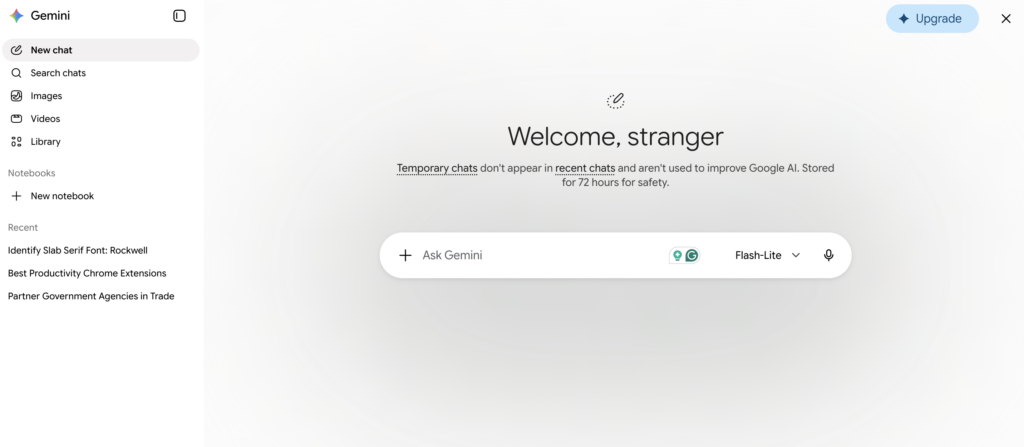
Google has developed its own AI assistant tool called Gemini and released it to all platforms under Alphabet, including Gmail. The reason behind the integration of Gemini AI into Gmail is to enhance the experience and help users to be more productive. The existence of Gemini in Gmail will streamline writing and organization in your Gmail account.
The integration of Gemini in Gmail claims to help users as an assistant for summarization, write emails faster, and get precise results to find files on their Google Drive. The integration of AI in Gmail for Google Workspace, which includes Help me write, proofreading, and smart reply, is only available for AI Premium Subscribers. On the other hand, free Gmail personal account holders only get limited features, such as AI Overviews and AI Inbox, and are only restricted for users in the United States.
In spite of the convenience, there are risks that your data or private communication through email can be accessed by Google. No wonder many people choose to turn off AI on Gmail to help protect their private data.
Why do we need to know how to turn off AI in Gmail?
Before giving instructions to turn off AI in Gmail, we may need to know the reasons first. AI in Gmail might sound helpful and exciting, but not to all users. Are you thinking of turning off AI in Gmail? Or do you think this isn’t necessary? Here are some possible reasons to consider, as this tool will be turned on by default.
- There is no guarantee Google won’t use your data
By allowing AI in your Gmail, you permit it to scan your email and attachments. This process is necessary for data profiling and personalization. However, in consequence, you might also allow Google to access your sensitive data and even share your profile with third parties. For a company or anyone who needs to reduce the risk of a data breach, it is wiser to turn off AI in Gmail rather than keep it.
- Adding a distraction to the Gmail inbox
AI Inbox might make your Gmail interface look different. They might shove command recommendations and suggestions that you do not need or want. Instead of helping them, some people who do not use AI that much may find these features a distraction.
- Possibility that Google uses personal data to display ads
Using AI in Gmail is more likely to allow Google to collect your data. From the collected data, whether it is from a search engine or Gmail, Google is profiling your characteristics and what is your background to endorse its features. As we know that Google has paid target advertising features to help promoting the third party content to reach platform users.
- Unclear data boundaries
Gmail and Gemini run differently, but the existence of AI in Gmail makes the boundaries more unclear. The user cannot be sure that their data is processed under the Gmail privacy policy or the Gemini policy. No wonder some people who concern on privacy choose to just remove the AI features.
- Lack of accuracy
AI summaries may sound helpful to get to know some information faster. However, AI is not invariably reliable, and sometimes it also makes mistakes, particularly with hallucinations. It is recommended for Gmail users to recheck and read the email content completely, especially for important emails, instead of solely relying on an AI summary.
How to turn off AI in Gmail using Google Workspace
After reflecting on the pros and cons, do you still want to know how to turn off AI in Gmail? If so, the following steps are what you need to take to have more control over your privacy by removing AI from Gmail.
- Step 1: Go to your Gmail and click the Settings (Gear) icon on the left side of your profile picture.
- Step 2: Find Smart Reply and check the inactive box instead of the active box.
- Step 3: Next, scroll to find Smart features and uncheck the box.
- Step 4: Choose Manage Workspace Smart Feature Settings, and once the pop-up comes out, uncheck the toggle to turn off smart AI features on your Google Workspace and other Google products.
By doing this, you will lose the Ask Gemini feature and personalized search and events from your email. You might also lose automated filters that sort your emails into several categories such as Primary, Promotion, Social, and Updates.
How to turn off AI in Gmail on a mobile phone
Once we comprehend how to remove AI in Gmail on desktop, we may need to understand the steps on how to turn off AI in Gmail on mobile. If you commonly use a mobile (Android/iOS) to open Gmail, the steps might be a little different. We recap how to turn off AI in Gmail mobile for you below.
- Step 1: Open the Gmail app on your mobile (Android/iOS).
- Step 2: Tap the three horizontal lines in the upper left corner of your screen.
- Step 3: Select Settings.
- Step 4: Find Data Privacy and turn off the Smart features and personalization toggle.
How to turn off AI features in Gmail:
To delve deeper into how to turn off AI in Gmail, we will give instructions to remove all of the additional AI features from your email. This instruction is useful for those of you who feel distracted by the AI features. The following steps will release your worry to get rid of all AI features in Gmail.
Smart Reply
In general, the steps for turning off AI features in Gmail are not that different from each other. You can just focus on the first step and unchecking the AI features. These are the ways to remove the Smart
- Step 1: Click on the Settings or gear icon in Gmail.
- Step 2: Then, choose the See all settings option in the menu.
- Step 3: Tap on General and scroll to find the Smart Reply part.
- Step 4: Tap the Smart Reply off option.
- Step 5: Click the Save Changes button at the bottom of the page.
Smart Compose
Similar to Smart Reply, turning off Smart Compose in Gmail can be done by following these steps.
- Step 1: Click on the gear icon on the right-hand side of the Gmail inbox.
- Step 2: Select the See all settings button in the menu.
- Step 3: Once in the other menu, select the General tab and scroll up until you find Smart Compose.
- Step 4: Check the Writing suggestion off option.
- Step 5: Move to the bottom part of the page and tap the Save Changes button.
Grammar, Spell Check, & Autocorrect
As we said earlier, the Grammar, Spell Check & Autocorrect feature appears by default in Gmail. If you find it unuseful you can remove it similar to Smart Reply and Smart Compose. Here are the complete instructions to turn off Grammar and Spell Check in Gmail.
- Step 1: Click the Settings button on the right-hand side of the Gmail inbox.
- Step 2: Choose See all settings in the menu.
- Step 3: Click the General tab and find the Grammar section at the bottom.
- Step 4: Check Grammar suggestions off.
- Step 5: Then, find the Spelling section and check Spelling suggestions off.
- Step 6: Find the Autocorrect section, and check Autocorrect off.
- Step 7: Similar to other features, scroll to the bottom part and click Save Changes to remove all AI features.
Conclusion
How to turn off AI in Gmail is quite easy; you will definitely not face any hardships by following our instructions above. The consequences of removing AI features in Gmail are quite mild as well. Other than losing the inbox filter category, you will not see any problem in general. To those who are concerned about the development of AI and how AI and potential data privacy incursion penetrate our lives, tips on how to turn off AI in Gmail can be handy.
Frequently Asked Questions (FAQs): How to Turn Off AI Features in Gmail
1. Why can’t I turn off AI in Gmail? Are the smart feature options greyed out?
If this happens, check if your Gmail account is managed by an organization such as a company or school, instead of a personal account. If that is the case, the setting is only available for administrators. Try to contact them to solve your issues.
2. What is the impact of turning off AI in Gmail?
You will lose some smart features such as suggested replies and writing. You will also lose the automatic filter that divides your inbox into several categories. Overall, there is no significant change in your inbox.
3. Is AI in Gmail useful?
It depends on your perspective and needs, as that might personal choice. If you think the smart replies and personalized inbox suit you, you might consider ignoring how to turn off AI in Gmail and leaving it on as the default. If you worry about your data safety and privacy, consider using the tips above to turn off AI in Gmail. There is no definite answer to this question.
4. Can you get rid of AI Overview in Google?
The turn-off feature is not yet available in Google Search, but if you feel annoyed by AI Overview, you can click More on the menu list below the search bar and select Web. This will show you web results only.
5. Why does Google integrate AI into its Workspace?
It is only natural, as Google is one of the tech companies that develop AI tools (Gemini). They need to train their AI agent, and one of the best ways is to use an available database that they already own, which includes emails. It is another revelation that, as a tech product user, you do not have full control over your data privacy and safety.
6. Are there any potential data privacy incursions if we use AI in Gmail?
Yes, of course. The inclusion of AI in Gmail cannot be solely used as a benefit to enhance productivity, but it also comes at the cost of your privacy, which can be accessed by Google. Thus, how to turn off AI in Gmail can be crucial to protect data privacy and ensure Google is not tracking your personal data.
7. Are there any other email providers powered by AI other than Gmail?
Yes, Gmail is not the only email provider that uses AI features on its platform. Microsoft Outlook is also known to have AI features by integrating Microsoft Copilot into its system. The AI features in Outlook include summarization, drafting, prioritization, chat scheduling, and others.
8. Can I get AI Overviews in Gmail for free?
No, AI Overview and AI Inbox are only available for paid versions, and you need to subscribe to Google AI Plus, Pro, or Ultra. On the other hand, you can use these AI services by subscribing to Google Workspace and Gemini. These features are not available in all countries, but it exclusively available in the US in English.