



PDF is one of the most versatile and stable formats of documents. Therefore, this format has become a standard for documents to be able to read easily. Some documents in PDF need to be stored securely, particularly for documents that contain sensitive data. To avoid data or information breaches, some people and businesses need a password. However, some of us may forget about the password, so you need to know how to deactivate the password in a PDF. In this article, we will guide you to remove or deactivate a password in a PDF.
Why do people need to deactivate passwords in PDF?
As we mentioned in the introduction, people not only need to activate passwords in PDF, but also need to deactivate passwords in PDF. This is crucial to ensure that the PDF can be edited and no longer protected. Here is the reason why people need to deactivate passwords in PDF.
- Easier to share and collaborate: By removing the password, all users or anyone who has a link to the PDF file will easily open the file. They no longer need to remove the password in order to open it, especially within an internal team, clients, and others.
- Compatibility with other operating systems and software: Removing PDF password enables editing of the PDF file across platforms and operating systems. This allows the PDF document to be edited using different software and avoid errors.
- Avoid access issues or forgotten passwords: Using a password in a PDF means that you need to use password to open the file. If you forget the password, there will be a problem. By removing the password, you do not need to worry about restricting access.
- Authorize editing for the internal team: Removing password means that you permit your team to easily access this document. So, within the internal team, you should allow them to access the PDF document.
- The document no longer contains sensitive information: If your PDF file no longer contains sensitive information, there is no need to use password protection. It can only make a restriction to access information that can actually be published to the public.
How to deactivate a password in PDF with Microsoft Edge

If you need the quickest way to deactivate a password in PDF, simply use Microsoft Edge. Follow the steps below to see how you can do it in seconds.
- Open your file in Microsoft Edge and enter your password to see the PDF document.
- Click the Print menu and change the command at the top of the pop-up window to Save as PDF.
- Decide the file location you prefer and click Save.
- Now try to open the newly saved file, and it should open without the required passkey.
Verdict: You need your initial password to get access to the file.
How to deactivate password in PDF with Google Chrome

You can apply the same technique with Google Chrome. However, this means you need to remember the password in the PDF document before applying it.
- Open your PDF file using Google Chrome. Do not forget to type your password to access the inside of the document.
- Click the Print icon and change command on top of the pop-up window to Save as PDF.
- Pick the local file you prefer to save the PDF document and click Save.
- Open your recent save and it should be open immediately without a password.
Verdict: You still need your initial password to get access to the file.
How to deactivate password in PDF with Adobe Acrobat Pro
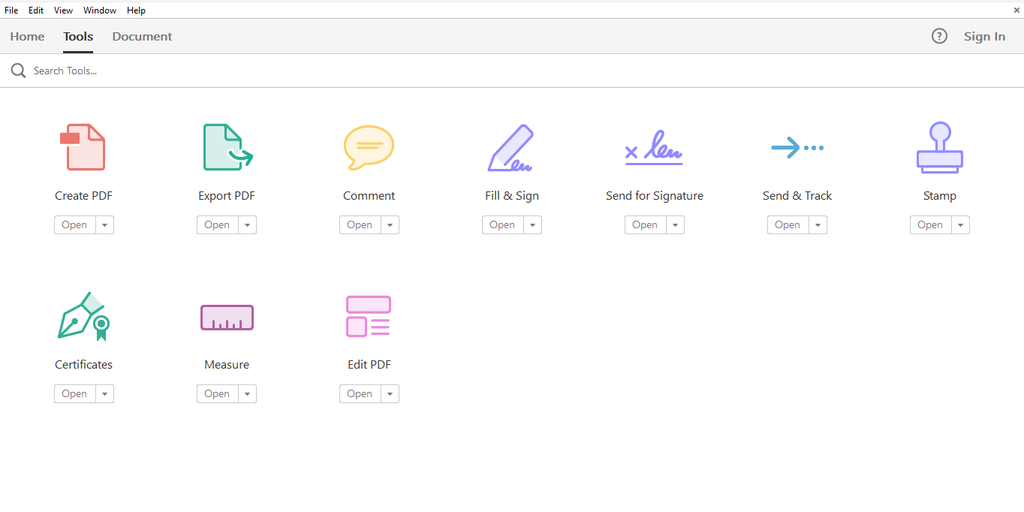
If you use Adobe Acrobat Pro, the password deactivation process might be a little different, but proportionately easy. Here are the steps.
- Open your document in Adobe Acrobat Pro. Enter your password to disclose the file.
- Check the navigation tool on the top left of your window, and select All Tools.
- Click View More to expand the full list of available menus.
- Select Protect a PDF, and an additional menu will be opened. Click on Remove Security.
- A new dialog window will appear; click Ok.
- Click the Save button, and your password is officially deactivated.
Verdict: You need your initial password and Adobe Acrobat Reader Pro, which requires a subscription fee.
How to remove password protection in PDF document for macOS
If you are an Apple user, you can also deactivate the password in a PDF document using the default app on macOS called Apple Preview. Follow the steps below.
- Open your file with Apple Preview, input your password to gain full access to the file.
- Click File on the menu bar and select Export
- Uncheck the Encrypt option or click the Permissions button and turn off the box saying “Require Password to Open Document”
- Click Save, and this should allow you to have a duplicated PDF document with no password.
Verdict: You still need your password to get access to the file before modifying it.
Free tools to remove passwords in PDFs
A free online tool is also useful for removing passwords in PDF documents. Here are several free online tools to deactivate passwords in PDF documents.
1. ILovePDF
ILovePDF is one of the renowned free online PDF editor tools. Not only does it provide features to deactivate passwords in PDF documents, but this tool also has many features to edit PDFs by just uploading your document on its platform.
2. PDF24
PDF24 is one of the best free online PDF editor tools. This tool was established by the German company Geek Software GmbH in 2006. Similar to iLovePDF, this tool is rich in features ranging from unlocking passwords in PDFs to compressing PDFs, PDF OCR, and many things.
3. PDF Candy
PDF Candy is available on online and offline platforms. This tool is developed by Icecream Apps in 2016 as a free cloud-based platform. PDF Candy has many features, including compressing PDFs, converting to PDF or converting from PDF to other formats, as well as unlocking password-protected PDF documents.
4. PDF2Go
PDF2Go is known as one of the popular free online PDF editors. This tool has a wide range of features to edit and convert PDF. This tool claims that they promote security and privacy for its users.
You can also try to use free cloud-based tools to remove passwords in PDFs, such as iLovePDF, PDF24, and PDF Candy, and PDF2Go. It is practical and quick; check the steps below.
- Open one of the websites mentioned above and find the Unlock feature.
- Upload your desired PDF file, and it will ask you to input the password. After entering the password, click Remove.
- The tool will process your file and once it is done, the Download toggle will appear and you can download your newly unprotected PDF file.
Verdict: The tool will still need your initial password, and by using their service, you share your file to their cloud storage.
What are considerations for using free tools to deactivate password in PDFs?
Using a free tool to deactivate a password in a PDF document is indeed convenient and can be an option. However, free online tools obviously have a dark side, particularly regarding security risks. Therefore, you need to avoid using free online tools if the document contains sensitive and confidential information. Here is a list of considerations before using free online tools to deactivate password in PDF.
1. Privacy and exposure concerns
PDF files that are uploaded to free online tools are at risk of being exposed or sold to third parties. This means if you upload PDF documents to free online tools, you are allowing their platforms to access your data and information from your document without your consent.
2. Malware infiltration
Free online tools to remove passwords are sometimes not secure enough. Therefore, some of them may be linked to malware that can infect your computer. You need to put attention to only using secure websites and avoid unverified online tools that look suspicious and dangerous.
3. Ethical issues
As we know, deactivating a password in a PDF means bypassing encryption on the document without consent from the owner. In some jurisdictions, removing encryption on a PDF document can be deemed illegal. To avoid the penalties, you should get permission from the owner or creator to access the document legally.
4. Functionality risks
Removing a password from a PDF forcibly can corrupt the file. Thus, the file can no longer be accessed by anyone. Before doing this, you need to be wise and get permission to open it or ask the owner to deactivate the password to access the PDF document.
5. Some passwords cannot be cracked
Passwords are used differently; some tools may be able to remove owner-restriction passwords. However, they may not be able to open a protected PDF document using a password without the owner’s knowledge. These days, some encryption is stronger than before and cannot be easily cracked using free online tools.
Conclusion
Deactivating a password in a PDF is relatively easy as long as you remember the initial password. It is analogous to the main key in this task. Without it, your problem will get muddier. It is impossible to crack a protected PDF file without the password, despite some tools offering the ability. You can remove the password from the PDF document as long as you remember the password in the first place.
Frequently Asked Questions (FAQs): How to Deactivate Password in PDF
1. Can I unlock the password using free tools?
Yes, there are many tools nowadays to unlock or deactivate passwords in PDFs. However, most of the free tools are available online, which means they are not guaranteed that your document stored on their servers is safe or that it will not be used or sold to third parties.
2. What is the best way to deactivate password in PDF?
The best way to deactivate password in PDF is by using Adobe Acrobat Pro because they provide the best security among the platforms. Therefore, if you want to remove the password with better security, Adobe might be the best option.
3. Can I open a protected PDF file without a password?
It is almost impossible to open protected PDF files without the password. There are some tools that offer that service, but many will be flagged as viruses or malware by your operating system. The risk is on you if you still want to use them.
4. How to avoid any hassle when forgetting PDF document password?
It is normal to forget your PDF document password, as you need to remember perhaps hundreds of prominent account passkeys. In order to save you from any hassle in the future, you can keep a little memo, physical or digital, to save passkeys and PINs from various accounts or documents you manage.
5. Do you think protecting a PDF document with a password is necessary?
Depending on your interests and intentions, several documents need layers of protection for their confidentiality and the sensitivity of the content. However, it is important to note that remembering the password is equally essential, as it is almost impossible to gain full access to the document without it.
6. What is the quickest tool to deactivate a password in a PDF document?
Browsers such as Edge and Chrome can be the quickest and simplest tool to remove a password from a PDF document. You do not need to upload your file to the shared cloud storage managed by a third party, and it is totally free. No subscription fee needed.
7. Do you think it is safe to deactivate a password in a PDF using free online tools?
No, because free online tools pose a lot of risks and security concerns. Therefore, before using free online tools, you need to check your document first. If the document does not contain private and sensitive information, such as free publications or other public documents, that should be fine. On the other hand, if the document that you want to remove the password from contains sensitive information, such as an ID number or an education certificate, then you should avoid using free online tools.