


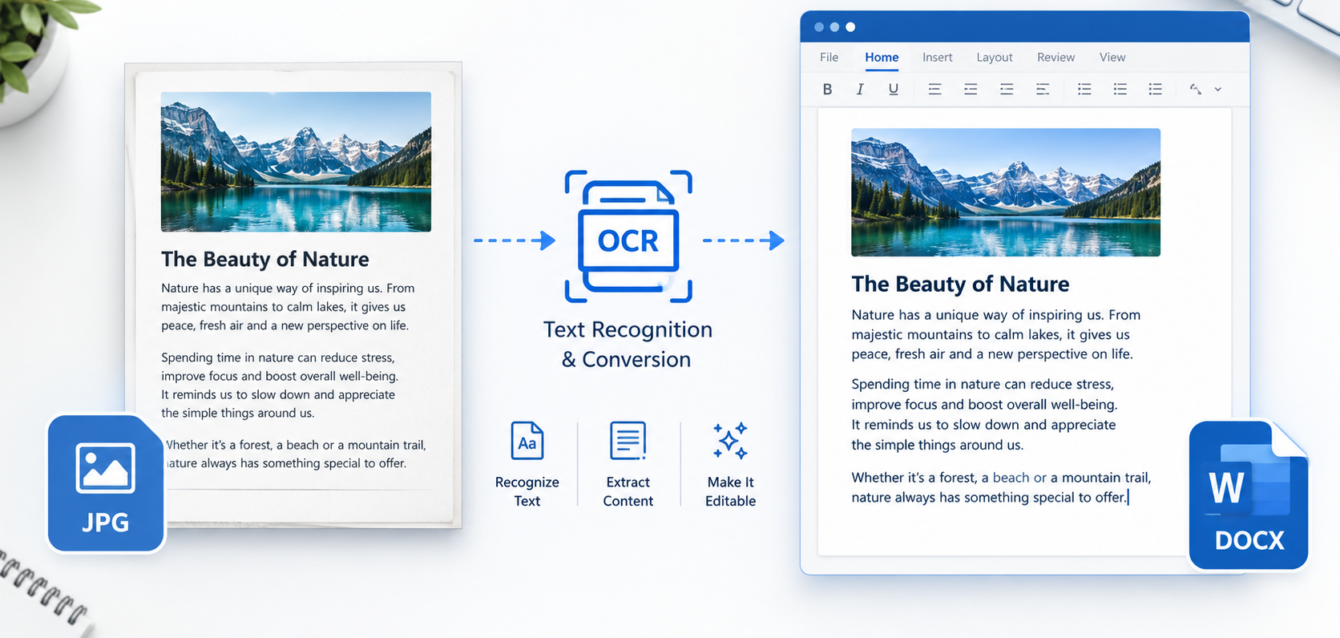
JPG is one of the most widely used formats for photographs, screenshots, scanned pages, receipts, forms, and saved documents. Even though JPG files are simple to view and share, the text contained in such an image generally cannot be edited, searched or copied as could the text in a Word document.
It is here that Optical Character Recognition, or OCR, proves to be useful. The technology examines the characters in an image and turns them into digital text; with an OCR-based tool you are able to convert a jpg into a word document and thus transform information from a static image into an editable document.
This can make a great deal of time available when you are dealing with scanned documents, printed notes, business records, forms, or screenshots. It should be noted, though, that OCR is not just a question of altering the file extension. The software has to identify the text and, in certain cases, reassemble items like paragraphs, tables, and headings.
The guide outlines various methods for converting JPG images into editable Word documents, such as using online tools, Microsoft Word, Google Docs, and mobile devices. It also describes how OCR functions, how to enhance its accuracy, what effect is had on the formatting, and how the converted documents can be incorporated into wider PDF document and AI-based workflows.
What is involved in converting a JPG to Word?
A Word document and a JPG store information in different ways.
A JPG stores visual information in the form of pixels; it will usually regard a paragraph contained in a scanned page as part of the image rather than as separate, editable characters.
A Word document, typically saved in DOCX format, stores the text as real digital content, which enables you to select words, alter the formatting, correct spelling, search for phrases, and rearrange the paragraphs.
Just renaming document.jpg to document.docx will not convert the file; it will still be an image.
It is OCR that enables real image-to-text conversion. The technology examines visual characters and tries to recognize letters, numbers, punctuation marks, and words; in some cases it also tries to identify paragraphs, columns, tables, and other elements.
The fact that the text is accurate has nothing to do with the accuracy of the original layout. A text recognition tool could identify nearly all the words correctly yet still require some manual formatting to be carried out.
What reason would there be for converting JPG images into Word?
There are a number of practical reasons why one should convert image-based information into an editable document.
Scanned Documents
The only thing that older documents may have are scanned images, and OCR can make the text from them editable and searchable rather than having to retype it manually.
Printed Notes
Students and adults who are engaged in professional work can take photographs of printed notes, reports, or reference materials and then retrieve the text for future editing.
Receipts and Business Records
Receipts, invoices, and all the other records can come as images; turning them into text that can be edited makes it easier to organize the information.
Forms
Certain forms are available as scanned or photographed documents and extracting the text from them is useful when it is necessary to recreate or update the information.
Screenshots
Screenshots can include instructions, error messages, addresses, product information, or other useful text and OCR is able to retrieve this information without it being necessary to type it manually.
Old or Archived Material
It is common for organizations to store their historical documents in the form of images, and OCR can be used to make these records simpler to search and manage in a digital format.
The greatest advantage is that it is accessible. When image content is converted into editable text, it can be corrected, copied, searched, reorganized, and used in other workflows.
How to Convert JPG to Word Online
It is convenient to use online OCR tools when you want to convert a jpg into a word file without having to type in the content manually.
Even though the various services have different interfaces, the fundamental process is generally the same.
Step 1: Prepare the JPG Image
Begin with the most clear image that is available. When taking a photograph of a document, place it on a level surface and provide adequate lighting.
Try to avoid:
Blurry photographs
Strong shadows
Glare
Tilted pages
Excessive compression
Unnecessary background areas
When the document is already in digital form, use the original high-quality image instead of a compressed one.
Step 2: upload iamge here
At the OCR or conversion service that you have selected, upload the JPG.
Before you upload any confidential documents, make sure you have looked over the provider’s privacy policy and data-handling practices; this is especially important when the documents contain financial information, identification details, business records, or other sensitive content.
Step 3: Let OCR Recognize the Text
The OCR engine looks at the image and tries to recognize the characters and structure in it.
Printed text that is clear is usually easier to recognize than handwriting, text in decorative fonts, or text that has been affected by bad lighting.
You can also choose the language of the document with certain tools, and selecting the right language will improve recognition.
Step 4: Convert the Content Into a Word File
After the OCR has processed the image, the service will let you export the recognised content in the form of a DOCX file.
The way the text is formatted will vary according to the tool used; some services concentrate primarily on extracting the text, whereas others try to maintain the headings, paragraphs, tables, and the spacing.
Step 5: Review and Edit the Result
Make sure that the Word file is compared with the original JPG.
Pay particular attention to:
Names
Dates
Numbers
Addresses
Technical terms
Tables
Headings
Punctuation
An insignificant error when using OCR can cause the meaning of important information to change.
How OCR Makes JPG Images Editable
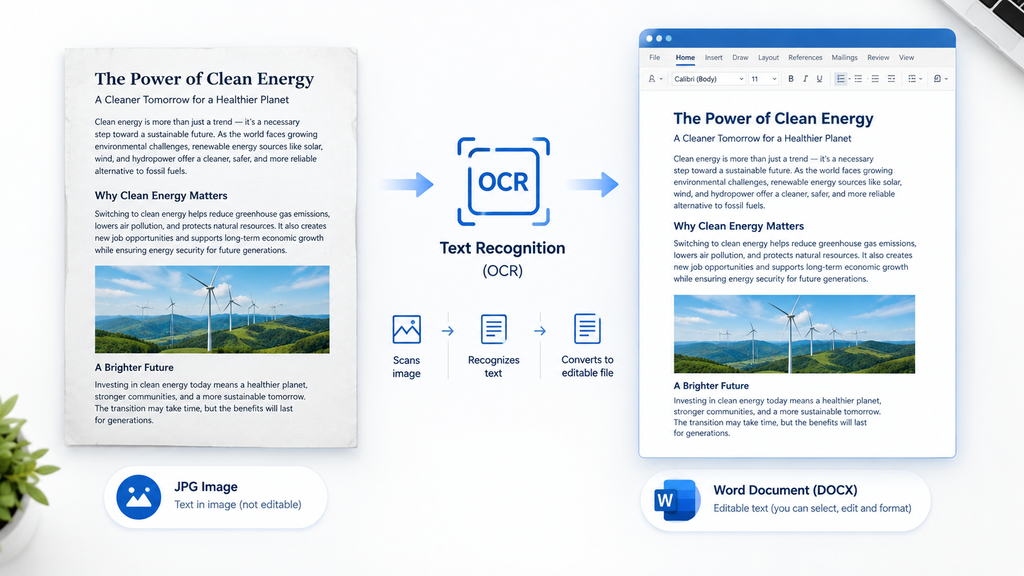
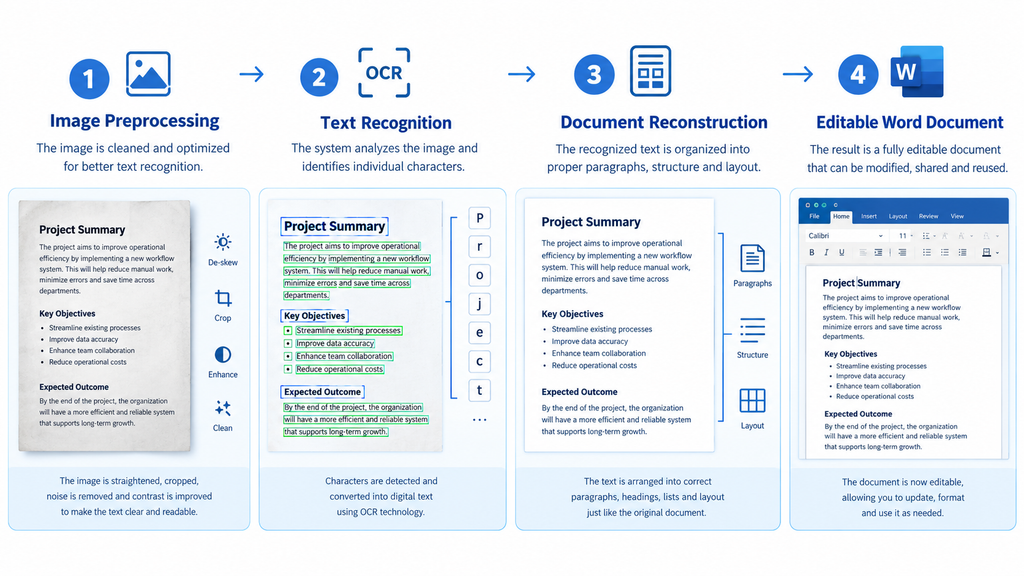
OCR is made up of a number of stages and not just a matter of copying the letters that are visible.
Image Preprocessing
The software could begin by examining the image and enhancing its suitability for recognition; this might include carrying out orientation correction, reducing noise, adjusting the contrast, or dealing with skewed pages.
For its image-to-text process, Google suggests that the images should be sharp, with even lighting, clear contrast, the correct orientation, and with the text large enough.
Text Recognition
The OCR engine looks at the shapes of the characters and decides which letters, numbers, and symbols they most closely match.
Characters which look alike can at times be mistaken for one another. For instance, a blurred image might lead a system into confusing a digit with a letter.
Document Reconstruction
Certain OCR systems try to reproduce the structure of the original page and they can detect paragraphs, lists, columns, and headings.
One reason why various OCR tools yield different results from the same image is this reconstruction.
Why OCR Results Can Sometimes Be Inaccurate
Several factors can affect recognition:
The images are blurry: it becomes hard to make out the edges of the characters.
Low resolution can make small details disappear.
People’s individual styles of handwriting are quite different.
Decorative typefaces can make it difficult to recognise the letters.
Because of the poor lighting, shadows and glare can conceal the characters.
Skewed images. Angled text can make it harder to detect lines.
Complex layouts: Columns and tables need more work to understand their structure.
The OCR output for important documents must always be reviewed.
How to Convert JPG to Word Using Microsoft Word
Although Microsoft Word is capable of containing JPG images, inserting an image into Word does not cause the text found within the image to become editable.
For instance, if you choose Insert > Pictures the JPG will be placed on the Word page and the text will still form part of the image.
Microsoft offers scanning options as part of its documentation for creating documents using OCR, and it states that documents which have been scanned can be saved in Word format with editable text.
A practical Microsoft workflow is:
Make certain that the document is clearly captured or scanned.
Use a Microsoft program that has OCR capabilities.
Save the content that has been recognized as a Word document.
Insert the DOCX file into Microsoft Word.
Take the original and compare it with that.
Make sure that any errors in recognition and in formatting are corrected.
The key difference lies between putting a JPG into Word and copying text from a JPG into Word. The two processes are not the same.
How to Convert JPG Images Using Google Docs
Google Drive offers a convenient workflow for the recognition of characters in image files.
As Google states, users are able to upload a JPG, right-click on it in Google Drive, and then select Open with > Google Docs, after which Google Docs tries to extract text from the image.
The basic process is:
Upload the JPG file to Google Drive.
Locate the uploaded image.
Right-click the file.
Choose ‘Open with’ and then ‘Google Docs’.
Review the extracted text.
Correct errors and formatting.
Transfer the completed content or save it to a Word document.
Google states that formatting might not be transferred entirely and also advises the use of clear images, the correct orientation, even lighting, and adequate text size.
Google Docs can be used therefore when the aim is to obtain readable text rather than to reproduce the complex visual layout exactly.
How to Convert JPG to Word on a Mobile Phone
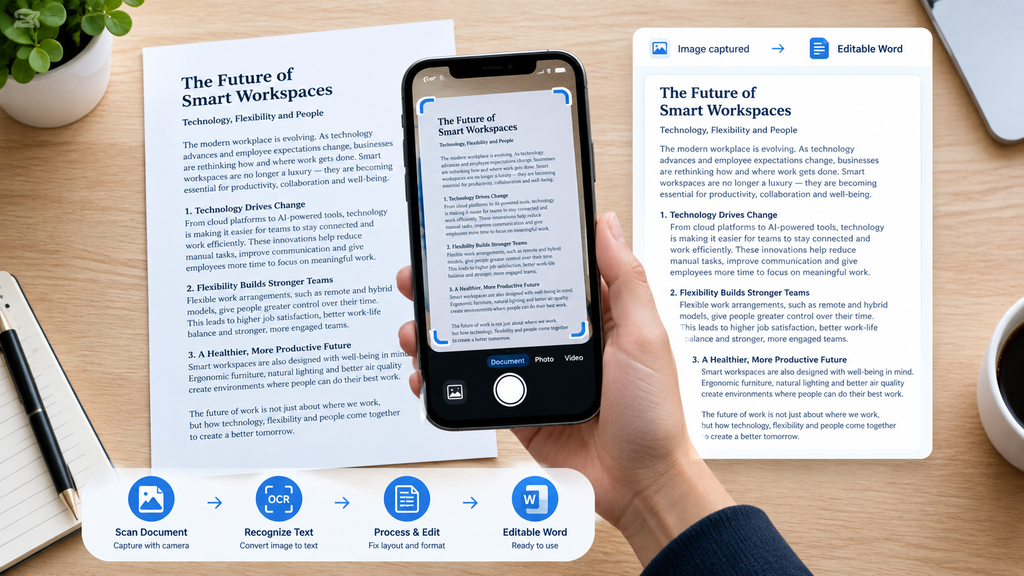
A computer isn’t necessary in every case for converting images to text. Today’s smart phones are capable of taking high-quality images of documents and then using OCR programmes.
When photographing a page:
Hold the phone so that it is directly above the document.
Use good lighting.
Avoid glare.
Keep the whole page in view.
Hold the phone steady.
Use the highest image quality that is practical.
Choose the correct language when it is available.
For example, Microsoft Lens allows you to capture documents and save the content it recognizes as Office files.
Mobile conversion is especially effective when applied to individual pages, receipts, notes, and short documents; however, for large numbers of pages, desktop workflows offer superior file management and editing control.
Common Problems When Converting JPG to Word
Incorrect Words or Characters
The OCR might mistake one character for another if the two look similar.
Solution: When comparing the converted text with ChatPDF alternatives the original image, attention should be paid especially to names, numbers, dates, and technical terms.
Missing Text
Text that is small or not clearly visible might not be recognized.
Try again after using a better image, improving the lighting, cropping the document correctly, and using OCR.
Broken Formatting
The paragraphs, headings, and line breaks could be misrepresented.
Solution: After the text has been extracted, reapply the Word styles and formatting.
Tables Not Converting Correctly
Tables rely on an exact structure in both rows and columns.
Solution: Make each cell identical to the original one; in the case of complicated tables, it might be more efficient to rebuild them by hand.
Handwritten Text Recognition Problems
The recognition of handwriting is considerably more difficult than that of printed text.
Solution: Where suitable, use an OCR method that is capable of recognizing handwriting and then carefully proofread the output.
Poor Results From Low-Quality Images
Images that are blurry or heavily compressed have less useful information.
Solution: Either go back to the original scan or take a new photograph which is clearer rather than repeatedly working on a low-quality file.
What’s the difference between JPG to Word and JPG to Text?
Feature JPG to Word JPG to Text
Output Editable document Plain text
Formatting May preserve some structure Usually minimal
Tables May retain some structure Usually simplified
Best use Editing documents Quick text extraction
Typical format DOCX TXT or copied text
Layout Can be partially reconstructed Usually ignored
Select the JPG-to-Word conversion option if you need a document that can be edited and formatted.
Use the JPG-to-text extraction option when all you need is the words themselves.
Is it safe to carry out JPG file conversions online?
Although online tools may be convenient, privacy must always be taken into account.
Before uploading a file, determine whether it contains sensitive information such as:
Personal identification
Financial records
Business documents
Contracts
Private correspondence
Confidential customer information
Go through the privacy policy and the terms concerning data handling of the service. Make sure to check what is stated about the retention of files, deletion, access, and the way in which the uploaded content is processed.
For sensitive documents it might be better to use an offline or organization-approved workflow.
It is wrong to suppose that all online converters treat uploaded files in the same manner.
Best Practices for Managing Converted Documents
The workflow remains reliable following the conversion.
Keep the Original JPG
If you find an error caused by the optical character recognition later on, the original text will give you a reference.
Use Meaningful File Names
Use names like invoice-march-2026.jpg rather than IMG_1234.jpg.
Check OCR Accuracy
Treat the document as final only after you have reviewed the converted version.
Save an Editable Copy
If there may be further changes, keep the DOCX file.
Create a PDF When Appropriate
It is useful to have a final PDF version for distribution and for archiving once editing is finished.
Organize Related Files
Make sure that the original images, editable documents, and the final PDFs are clearly organised.
Protect Sensitive Information
Before uploading confidential documents, make sure to use appropriate access controls and carefully assess any third-party services.
Frequently Asked Questions
Is it possible to turn a JPG image into an editable Word document?
Yes, OCR is able to detect text in a JPG and put the recognised text into an editable Word document, the accuracy thereof relying on both the quality of the image and the OCR system.
What is the simplest method for converting a JPG file to Word?
A converter with OCR facilities is convenient when dealing with a single image, and both Google Drive and Microsoft’s scanning tools offer OCR-based workflows.
Can OCR be used with scanned images in JPG format?
Correct, because OCR is intended for the recognition of text which is present in images and in scanned documents, clearer printed text tends to yield better results than text that is blurry or highly stylized.
Yes, can I carry out a conversion from JPG to Word on my phone?
Yes. Mobile OCR apps can capture documents. Depending on the app, they can also save the recognized content as editable documents.
Can JPG images that have been written by hand be converted into Word?
Although certain OCR systems do support handwriting, handwriting is usually more difficult to recognize accurately than clear printed text and the results should always be reviewed.
Will the original formatting be kept?
It isn’t always the case that text is accurate; the tables, columns, the spacing, the fonts, and the other layout features will need to be corrected.
Is it possible to turn several JPG images into a single Word document?
Certainly. It is possible to process a number of images and combine them into one document, making sure that they remain in the right order and checking the page breaks.
Is it safe to upload JPG files to online converters?
It varies according to the particular service. Before uploading any confidential information, you should look at its privacy policy and see how it handles data.
May I make alterations to the text after I have converted a JPG?
Yes, after the OCR has produced the text you can edit it in Word just as you would edit other kinds of editable content.
What is the right thing to do when the converted text contains errors?
Check the original JPG and correct the errors by hand. If a large number of errors occur, then use a clearer image or try a different OCR method.
Conclusion
JPG files are useful for storing visual information, but they are not very convenient if the text contained in them has to be edited, searched or reused. OCR overcomes this issue by identifying the characters in an image and converting them into digital text.
The quality of the original image is important when converting a jpg to a word document. OCR systems work more effectively when the document is clear, properly aligned and well lit. Nevertheless, even if the image is good the resulting document should still be checked for incorrect characters, missing text, tables, spacing and formatting.
Different situations call for different workflows; online OCR tools are convenient for quick conversions since Microsoft and Google offer useful document-recognition features, and mobile tools can deal with documents when a computer is not at hand. After the documents have been converted, Word gives you an editable environment, whereas PDF is useful for finished documents and for archiving.
Extracted text can also be used with document-analysis and AI document analysis in the case of large workflows, as long as the selected platform supports the task in question and the necessary privacy precautions are taken.
The best method is therefore not just to turn the image into text and be done with it; you should keep the original, check the OCR output, correct the major errors, and then decide on the final format of the document depending on how the information is to be used.