


6 Multiple Easy Ways to Save an Email as a PDF
 Dec 16,2025
  By admin_chats
PDF is one of the most convenient formats to save a document. It offers compatibility as well as versatility and is thus beneficial for work. On some occasions, it is quite possible that you are asked to save an email as a PDF. This is a common practice for file organization and document preservation in case you or your institution need to prove the content of online correspondence via email, such as contracts, legal matters, and communications between parties involved.
Saving an email as a PDF assures the authenticity as it is less likely to be altered, both accidentally or deliberately. It also creates a professional impression compared to screenshots. This article provides several tutorials on how to save an email as a PDF based on the email providers. These are the 6 ways to save an email or email chain as a PDF document below.
How to Save an Email as a PDF
Depending on what service you use for hosting your email correspondence, here are some key steps to save an email as a PDF.
1. How to save an Email as a PDF in Gmail
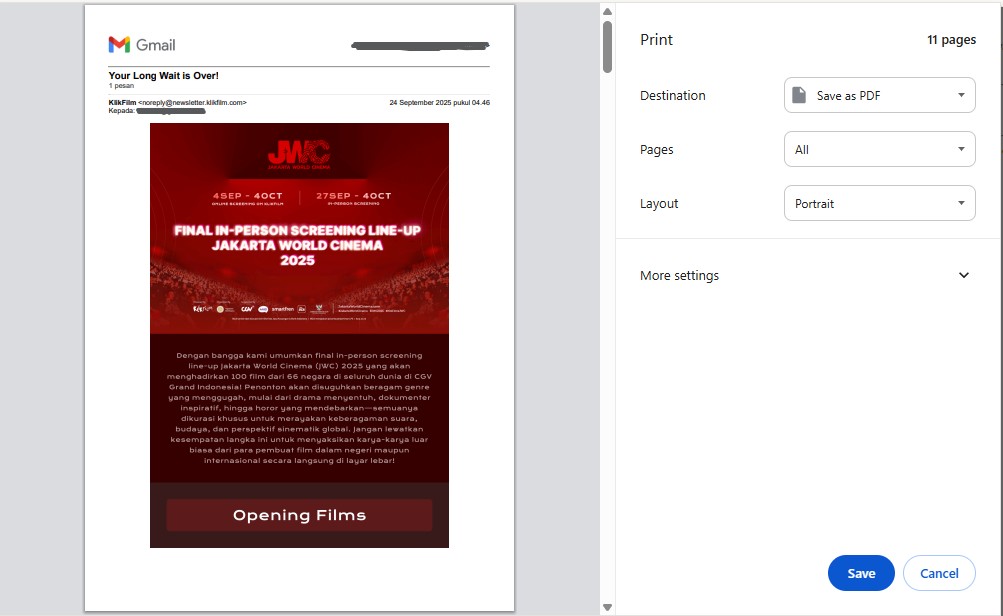
Google Mail, or Gmail, is a well-known email provider that is available both on desktop and mobile browsers. If you happen to use the web version of this service, you can follow these steps on how to save an email as a PDF in Gmail.
- Step 1: Open the specific email you intend to save.
- Step 2: Click the printer icon on the top right of the email.
- Step 3: In the print preview window, find the Destination option and change the setting to Save as PDF.
- Step 3: Click Save and choose the specific location you want to store the PDF document on your desktop.
2. How to save an email as a PDF in Outlook
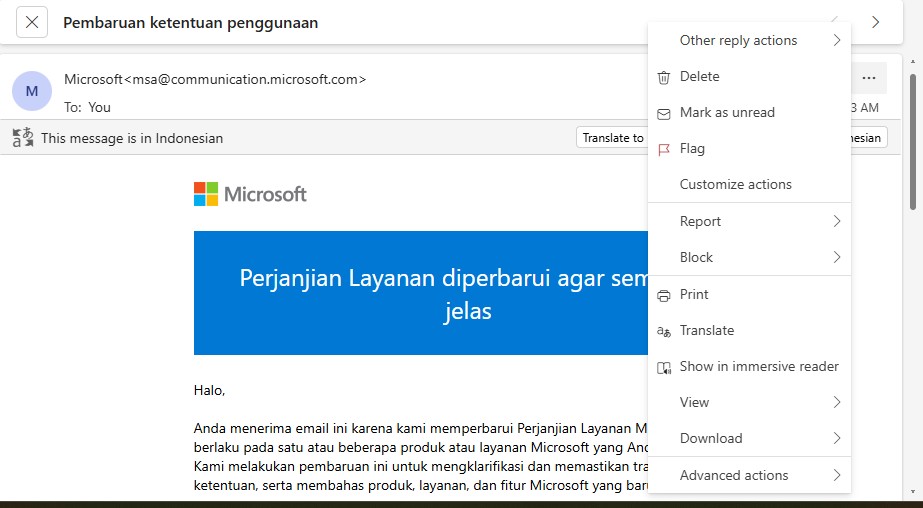
As a Gmail competitor, you might know the Outlook email. This email provider is developed by Microsoft as a replacement for Hotmail. The process of saving an email to PDF in Outlook is similar to what you do with Gmail. Here are the steps. These are the steps on how to save an email as a PDF on the app version of Outlook for Windows desktop.
-
- Step 1: Open your email.
- Step 2: Click File, followed by clicking Print on the drop-down menu.
- Step 3: When the print windows emerge, choose Microsoft Print to PDF.
- Step 4: Click Print and select the specific storage location you want to save the file.
3. How to save an email as a PDF in the mobile version of Gmail and Outlook
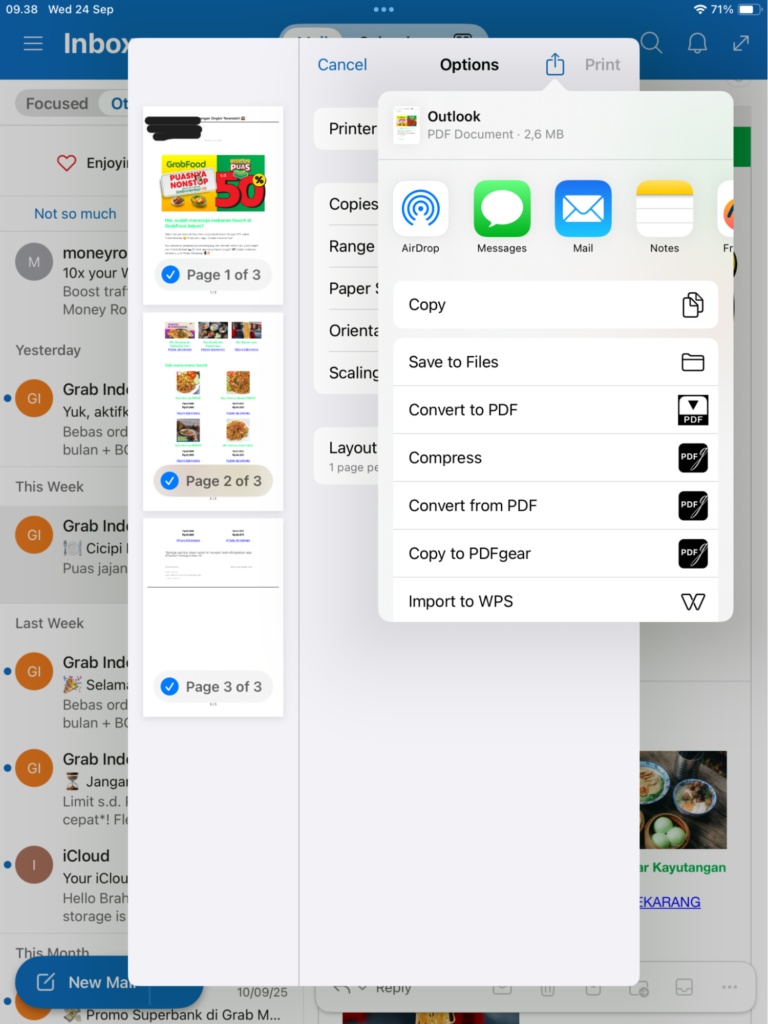
If you use the mobile version of Gmail and the Outlook application, you can follow these instructions on how to save an email as a PDF instead.
- Step 1: Open the specific email that you need to save to a PDF format.
- Step 2: Select the three dots (…) menu on the top right of the screen. Then, click the Print button.
- Step 3: In the print preview window, click the arrow on the top right of the screen, tap Save As PDF (Android) or Convert to PDF (iOS).
How to save an email chain as a PDF
In some cases, you can be expected to save the email chain or multiple emails to a PDF. This is an intriguing task as you need to handle more than one email. Despite the challenge, the task is feasible. You can preserve the entire conversation, including replies, in one PDF document. Thus, you can follow these tips on how to save an email chain as a PDF.
1. How to save an email chain as a PDF in Gmail (Web Browser)
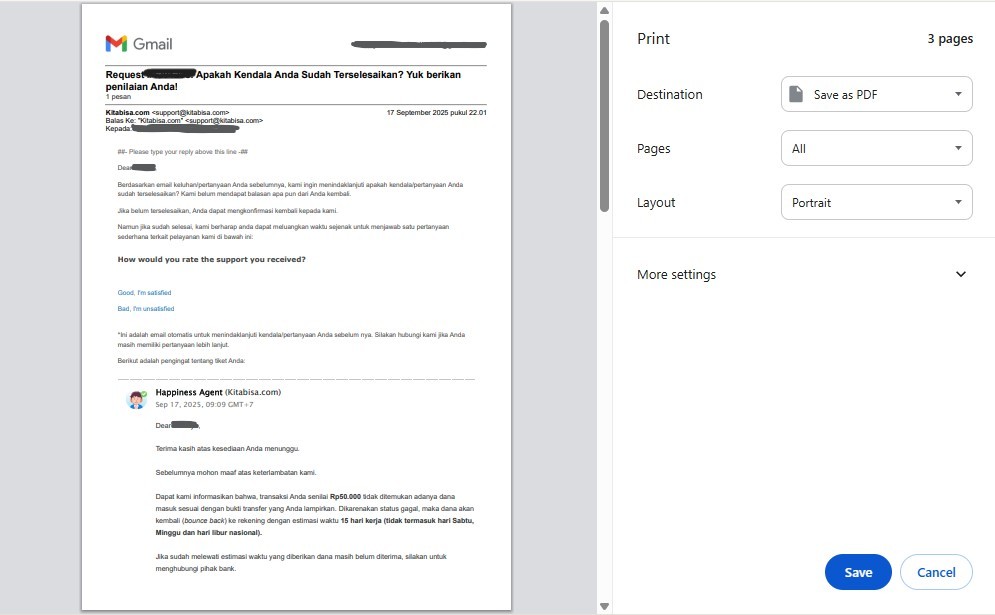
Gmail offers an easy way to save an email chain as a PDF.
- Step 1: Open the entire email chain in Gmail.
- Step 2: Make sure all messages in the chain are expanded by clicking “Show trimmed content” or tapping “View entire messages”. Many times, the email thread is already open, so you can skip this step.
- Step 3: Select the Printer icon at the top right of the email.
- Step 4: When the print window emerges, check the message chain, and make sure everything is on display.
- Step 5: On the Destination menu, click the Save to PDF option.
- Step 6: Click Save and choose the storage location within your desktop.
2. How to save an email chain as a PDF on Outlook (Web)
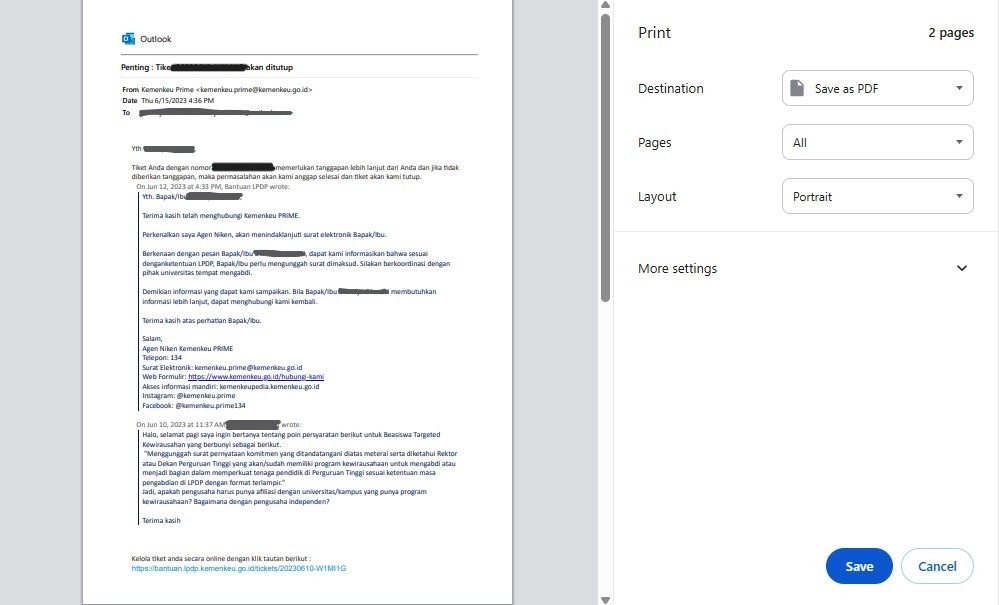
On the web version of Outlook, you can try these tips on how to save email chains to PDF.
-
- Step 1: Open the specific email thread you need to save to a PDF format.
- Step 2: Click the three dots (…) menu at the top of the email. Then, choose Print.
- Step 3: In the print preview dialogue, check if all messages appear.
- Step 4: Select Save as PDF
- Step 5: Save the file to the intended space on your computer.
3. How to save an email chain as a PDF on Outlook and Gmail (Mobile App version)
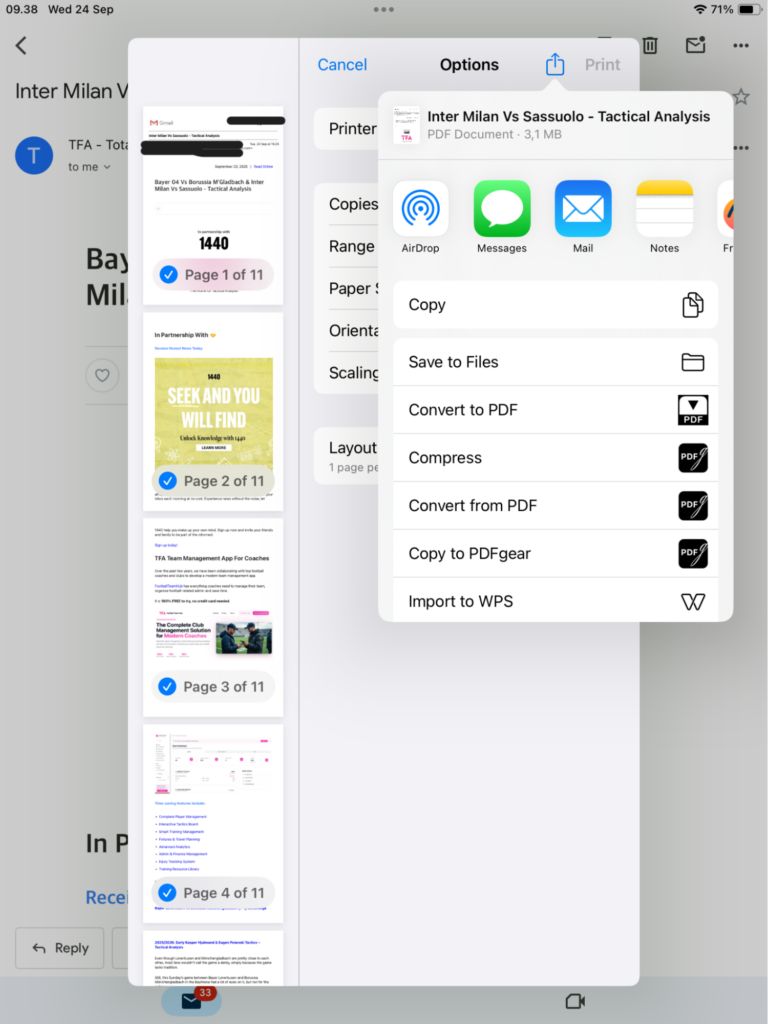
There is a slightly different menu display on the mobile app versions of Outlook and Gmail. Therefore, here are the steps you need to follow in order to save an email chain as a PDF in Outlook.
- Step 1: Open the email chain.
- Step 2: Scroll through the conversation so that the entire correspondence is visible.
- Step 3: Click the three dots menu, choose Print.
- Step 4: Choose the Save as PDF if you use Android, or click the Share icon near the Options menu and pick Convert to PDF if you use iOS, then save the document wherever it belongs.
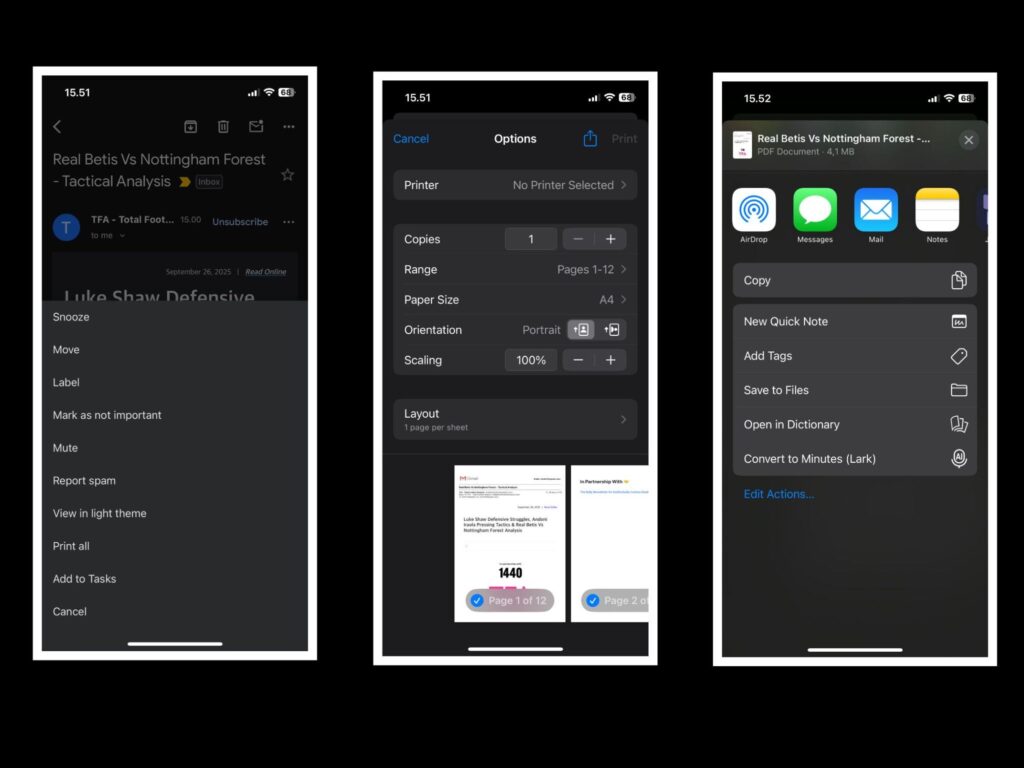
The tips on how to save email chains to PDF are also doable for mobile devices (Android or iOS) with similar steps. Yet, if the thread is long, it would be more convenient to do the steps on how to save an email as a PDF on a desktop or computer.
Additional tips on how to save an email as a PDF
Despite the convenience, there are several things you need to ensure before saving an email or email chain as a PDF. These are the additional steps of how to save an email as a PDF, as follows:
- Make sure you download the attachment separately
This step is important as the PDF file of the email will not include the attachment. It only displays or indicates that the email contains an attachment, but it will not show or provide the attached file.
- Use a browser extension if possible
Some browsers offer extensions you can download and install for free. There are many handful extensions to save an email as a PDF, such as Save emails to PDF for Gmail and many others.
- Make sure each conversation appears during the print preview
If you need to save an email chain, it is critical to make sure that each conversation appears properly. You can check this during the print preview, one step before saving the document to your desktop.
- Save with clear and consistent file names to help the organization process
This tip is critical if you need to save more than one email as a PDF. Use a consistent name or label from the start, and it will save you more time when you need to find the files later.
- Password protection
This is important if your email includes sensitive information. You can use a PDF editor app to protect the document with a passkey.
- Check before you leave
While the steps could be easy and practical, it is to be noted that you may potentially make mistakes. Thus, checking before you leave is crucial. Make sure you open the PDF files of the email or email thread before departing for the new tasks.
- Consider using third-party services
If you work with a great set of data, such as invoices and receipts, you may start to consider third-party services like Zapier or IFTTT. Both services can alleviate time-consuming tasks, such as saving an email as a PDF. They work by following the prompt, including organizing your email correspondence. You can trigger them to sort your emails and even send the emails to a cloud service. This will not automatically save the emails to PDF, but it will save you tons of time by sorting the emails you want to work with.
Meanwhile, how to save an email as a PDF using third-party services is easy. You need to sign up to make an account for PDF APIs. Then, choose the HTML to PDF Converter menu to start extracting the emails you already saved in the cloud using Zapier or IFTTT.
Benefit of saving an email as a PDF
There are several crucial reasons why saving an email to PDF is crucial in a professional setting. You can expect these 6 reasons dubbed as the essential benefits from this specific document preservation method. These are the 6 main reasons to save an email as a PDF.
- Proof of authenticity
By using the steps on how to save an email as a PDF in Gmail or Outlook, you are ensuring the genuineness of the online correspondence. There will be no change in information required, such as text, formatting, link, attachment, sender and receiver identity, as well as timestamps. This will be critical when you are expected to prove the content of an original email for a certain occasion, such as legal disputes, contract agreements, etc.
- Enhance organization and record storage
PDF is one of the most reliable formats. It will guarantee accessibility as it is universally used and can be opened on almost all gadgets (desktop, tablet, or mobile) without problems. Compared to other popular and common formats, including docx, png, or jpg or jpeg, the PDF format offers the easiest access everywhere without the risk of corrupted documents.
- Offline access
By applying the steps on how to save an email as a PDF, you will be able to access the document without internet access. It can also save you from the risk of losing access to your email account due to technical issues and any other potential problems.
- Impression of professionalism
Besides saving an email to PDF, you can also resort to another common practice, such as screenshotting your email. It is fast and easy, yet it would not have a professional and clean look. Particularly, for professional and legal matters, PDF is more readable and will provide you with a high-definition display. It could also save you from the possibility of missing important information.
- Easier to print and archive
In many cases, you will be expected to prepare the documents in either soft or hard files. Saving an email as a PDF will reduce any hassles in case you need to print the file. It has a clean format, which is ideal for both physical and electronic archiving, compared to web pages or manual screenshots.
- Legal use
Keeping exact copies of correspondence is required in many industries, particularly law, healthcare, and finance. PDFs are accepted as standard legal documents, which also provide essential metadata, especially for time-sensitive documents or communications.
Conclusion
Saving an email as a PDF has a function to reduce the complicated conversion method to another format before converting it to a PDF. Therefore, this instruction on how to save an email as a PDF is very useful for the workers in the companies. Saving an email as a PDF will simplify the process of bundling the invoice from the email or other important emails.
Through these tutorials, you can learn how to save an email as a PDF based on the email providers that you usually use. Besides, you can also use this method to archive the email chain to PDF in order to ensure that the conversation in email is documented accordingly.
Frequently Asked Questions:
Why do people need to save their email in a PDF format?
People need to know how to save an email as a PDF because it is useful for documentation and the archives of the company. This is required for important documents, such as bank statements, contracts, deals, invoices, and others.
Which is the provider that provides the simplest method to save an email to a PDF format?
All of the email providers are giving simple methods to save in the PDF format. However, the email providers vary in how to save an email as a PDF format. On the other hand, you need to understand the device that you used for saving an email to a PDF.
Can I save an email as a PDF without the need to pay?
Yes. The email providers commonly provide the service to convert email to a PDF without the need to pay a cent these days. This is part of their services in order to make the users choose them.
Can I save an email in a PDF format on a mobile phone?
Yes, definitely. You can save an email as a PDF on your mobile phone or tablet. However, you need to install the application on your mobile phone first to make the process of saving an email to a PDF easier and convenient.

 Dec 17, 2025

