


5 Multiple Easy Ways to Convert HEIC to JPG on Windows
 Dec 17,2025
  By admin_chats
In today’s digital age, almost anything can be turned into digital content, leading many Android users to switch to iPhones. According to GSM Arena, as of early 2025, active Apple users, including iPhone users, reached 2.35 billion.
One of the most plausible reasons is that the iPhone camera is superior to Android cameras in terms of photo consistency (natural colors, more realistic skin tones, and consistent results across various lighting conditions). This is due to the tight integration between the camera sensor, the A-series chip, and the iPhone Operating System (iOS) software.
Since 2017, iOS 11 has replaced the standard image format, Joint Photographic Experts Group (JPG), with a newer image format called High Efficiency Image Container (HEIC). This image format allows for high-quality iPhone camera shots, but with much smaller file sizes than JPG.
However, the HEIC format is still not Windows-friendly. Therefore, it’s no surprise that many questions arise about how to convert HEIC to JPG on Windows. This article provides the answers to the hurdles of how to convert HEIC to JPG on Windows using built-in tools, free apps, and online converters without quality loss—five ways.
HEIC vs JPEG: What Is The Difference?
Before knowing how to convert HEIC to JPG on Windows, it seems you need to first get acquainted with HEIC and JPG.
1. High Efficiency Image Container (HEIC)
This format first became public knowledge when Apple introduced it with iOS 11 in 2017. Apple chose HEIC for its efficiency. This efficiency is evident in both quality and file size. HEIC provides clear images that remain stable in editing. Besides image quality, this format also offers superior storage capacity, as it can produce smaller images.
The Moving Picture Experts Group (MPEG) developed this format, and MPEG successfully approved it as an information technology/multimedia standard by the International Organization for Standardization (ISO)/International Electrotechnical Commission (IEC). HEIF/HEIC → ISO/IEC 23008-12 is the International Standard Number.
2. Joint Photographic Experts Group (JPG)
This format is a legacy format, widely known since 1992.
The format’s popularity is evident in the number of devices that have adopted it as their default format. Everything from computers and cameras to mobile phones and printers to websites and editing applications uses this format as the most common standard for digital images.
Although the development of this format differs from HEIC, the standardization of both formats is the same. Through the JPEG Committee, JPEG has been standardized by the International Organization for Standardization (ISO) / International Electrotechnical Commission (IEC) with the International Standard number JPEG → ISO/IEC 10918.
Why is it important to know how to convert HEIC to JPG on Windows?
While there are virtually no drawbacks, why is it so important to know how to convert HEIC to JPG on Windows? Here are the common reasons:
1. Regarding Adaptation or Compatibility
The HEIC format’s relative influx into the technology world has made the process of adapting to it relatively slow. HEIC compatibility is not yet widespread across many devices and operating systems. The HEIC format remains exclusive, accessible only to Apple users. This contrasts with JPG, which can be accessed by almost all devices and operating systems without the need for conversion.
This includes Windows 7, Android with operating system versions older than 2018 (before Pie), macOS with operating system versions older than 2017 (Sierra, version 10.12), several older editing applications—Adobe Photoshop, Corel, Microsoft Paint, and even Microsoft Office—and almost all web applications and websites have difficulty recognizing, accepting, or opening this new format, HEIC. Everyone is still accustomed to JPG as the standard format.
2. Regarding Compression: Ease of Editing
HEIC’s compression, or known as HEVC, or H.25, is not yet widely accepted in the industry. From simple mobile apps to Photoshop, GIMP, Corel, Paint, and Canva, editing software, they don’t yet support HEIC’s modern compression.
Special software is required to handle HEIC’s modern conversion.
Because of this, the HEIC format doesn’t offer convenience and instead adds additional steps, requiring conversion before editing for various purposes, such as batch resizing for the web.
3. Regarding Requirements: Platform or Website
The HEIC format often fails to meet the requirements of most websites, such as job portals, e-learning websites, scholarship applications, and online university forms.
Chrome and Firefox are examples of browsers that still limit their systems’ ability to accept the HEIC format. Some systems can, while others still cannot.
Instagram, Facebook, and WhatsApp are social media applications that automatically detect HEIC files and convert them to JPG, converting them to a format that can easily sync across devices.
4. Regarding Advanced Features: Application Limitations
The most important advanced feature of the HEIC format is the color depth per pixel (bit-depth). This allows images to appear realistic and detailed. The more limited the receiving application, the less visible this advanced feature will be. The 10-bit bit-depth feature will not be achieved if the receiving application is limited in its ability to accept the HEIC format.
Transparency is another advanced feature of the HEIC format. Applications that do not support the format experience a black or white background in the image.
Another advanced feature is the detailed image information and the availability of multiple frames within a single file. If an application does not support the format, only a single frame can be read.
How to Convert HEIC to JPG on Windows?
After learning the four common reasons why it’s so important to immediately learn how to convert HEIC to JPG on Windows, here’s the most anticipated part. There are five ways to answer your question about how to convert HEIC to JPEG on Windows.
1. Photos App: A Quick and Easy Option
The first method is for you if you are using a laptop or PC running on the Windows 10 or 11 operating system. This method is the quickest and easiest because it only requires the two things, as follows:
- Photos, a default file extension that comes pre-installed on Windows 10 or 11.
- The HEIF Image Extensions application on your Windows. Install this application by downloading it from the Microsoft Store.
If you want to use this Photos App, follow these instructions on how to convert HEIC to JPG on Windows.
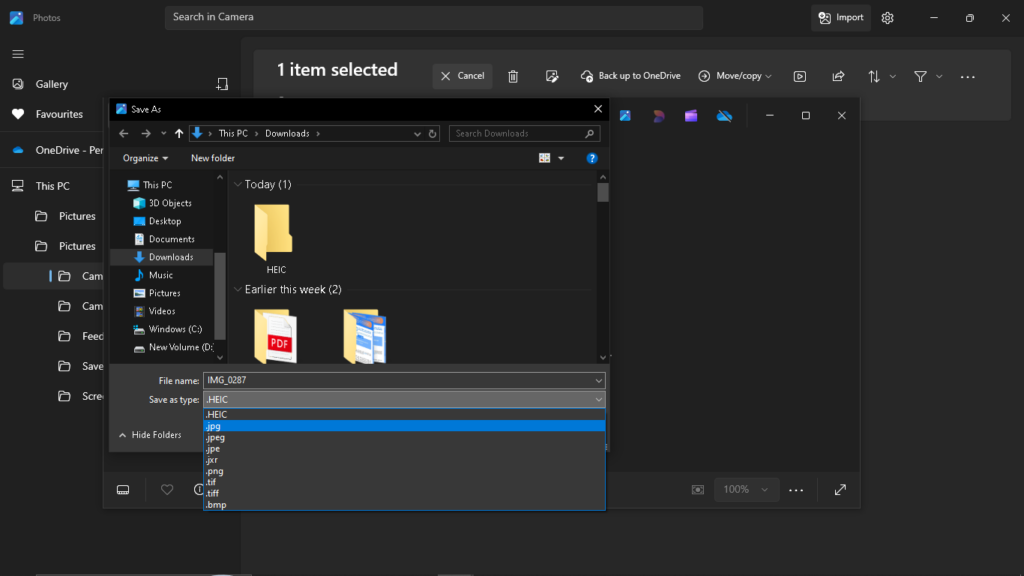
Step 1: Open the Photos app, then open the HEIC file.
Step 2: Right-click and select Open.
Step 3: Once the HEIC file appears on the screen, right-click again to select Save as.
Step 4: Continue changing the save format from HEIC to JPG.
Step 5: Select a save location and click Save.
These methods on how to convert HEIC to JPG on Windows using the Photos App are very easy. However, this method still has a drawback in terms of the number of files converted, namely, it can’t convert large numbers at once, one by one.
2. Paint: Another Built-in Option
Another easy and quick instruction on how to convert HEIC to JPG on Windows, if you’re using the built-in application, is, of course, the Paint application. If you choose this, you’ll need:
- The Paint application itself.
- The HEIF Image Extensions application. This app can be downloaded from the Microsoft Store.
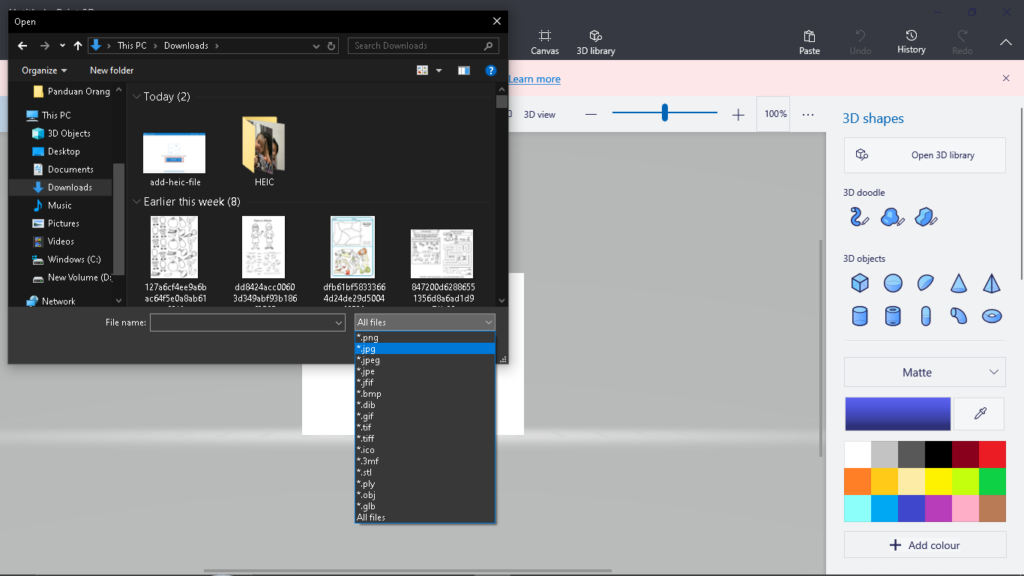
After that, continue with these steps:
- Step 1: Open the Paint application.
- Step 2: Select Menu, then click Browse files.
- Step 3: Once the selected HEIC file appears on the screen, proceed to convert the format to JPG.
- Step 4: Then, just click Save in order to save the changed file format.
The ease of conversion using this method is directly proportional to the slowness of the conversion process if you want to convert more than one HEIC file.
3. Several Online Converter Options
This third method is a quick and easy shortcut that you can choose to answer how to convert HEIC to JPG on Windows. Keep in mind that the first and second methods above are often hampered by issues with Windows operating system version updates. If you don’t follow the Windows update offer, the two quick and easy methods above will be difficult to implement. For example,
- Windows 10 doesn’t yet support direct conversion to JPG because it’s still using older versions of Photos or Paint (built in by default).
- The HEIF Image Extensions application might not download properly.
If this happens, you should immediately choose the third method: a free online converter. Ensure a stable internet connection when choosing this method!
Some of the most sought-after and preferred converters for converting HEIC files to JPG are iloveimg.com , heictojpg.com , cloudconvert.com , or convertio.co .
These online converters generally have similar steps. Let’s try converting using an online converter, such as iloveimg.com .
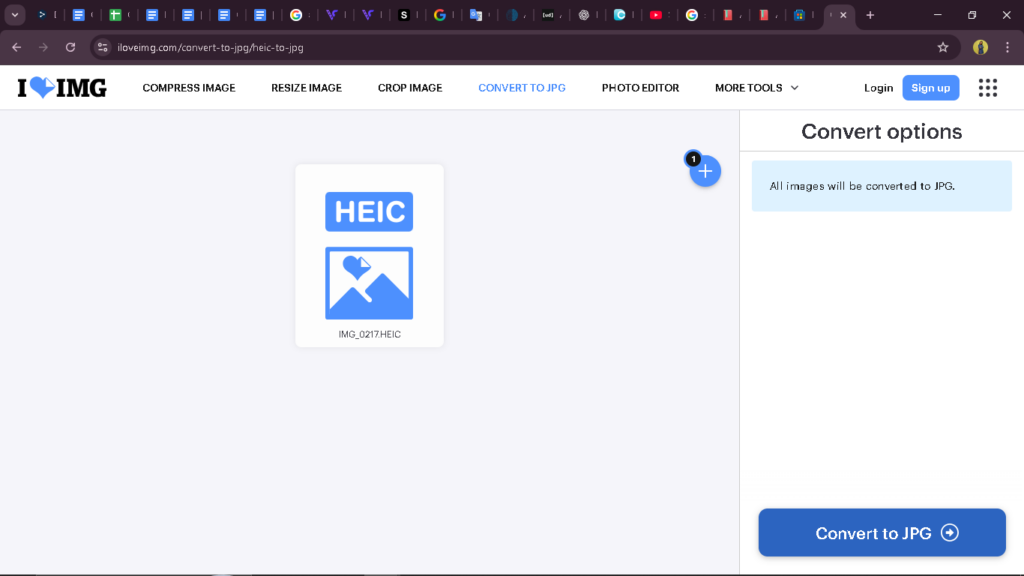
- Step 1: Open iloveimg.com on your PC or laptop browser.
- Step 2: Once the website is open, upload the selected HEIC file from your computer storage.
- Step 3: Click the “Convert to JPG” command in the conversion options section on the right side of your PC or laptop.
- Step 4: Then, download the converted file as a JPG.
When choosing this method, you need to pay attention to the security of the HEIC file you are uploading for conversion. It’s best not to upload files that are too personal, as this method is vulnerable to abuse – the upload system is to the server.
4. How to convert HEIC to JPG on Windows using Free Software on the Internet
If your internet connection is lacking, or you have trust issues with the third conversion method, using an online converter, then try to relax and study this fourth method more carefully. This fourth method is suitable for those of you dealing with large numbers of HEIC files. This method of how to convert HEIC to JPG on Windows utilizes third-party software. One example is CopyTrans Heic for Windows. This software can convert up to 50 HEIC files to JPEG per day with a single right-click.
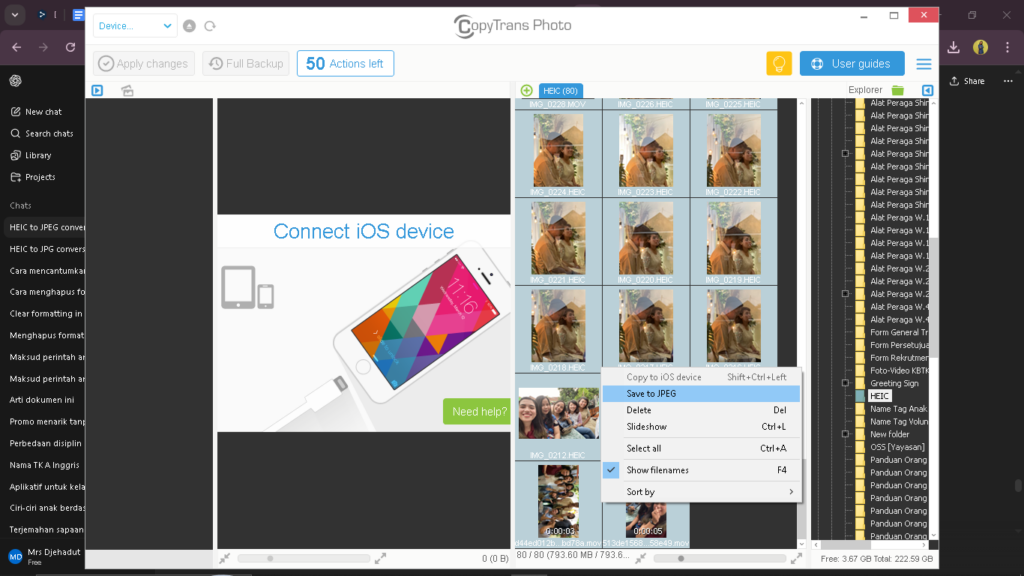
Here are some steps to use:
- Step 1: Download this software from the official website, https://www.copytrans.net/copytransheic/ .
- Step 2: Once downloaded, several applications will appear, including CopyTrans Photo.
- Step 3: Download this application. Then, click Start.
- Step 4: When the application opens, click Start again.
- Step 5: Next, a column will appear on the right side of your PC or laptop, displaying the folders on your PC or laptop.
- Step 6: Select the folder containing the HEIC files you want to convert using this application.
- Step 7: Please tap Ctrl + A if you want to convert all files in the folder you selected earlier.
- Step 8: Right-click to select Save to JPG.
- Step 9: Wait for the conversion process until it is done. This process will automatically save to the folder you selected in step six.
Besides Copytrans HEIC for Windows, another lightweight software for Windows that can be an option to answer the question of how to convert HEIC to JPG on Windows is IrfanView.
This software is also capable of converting large numbers of files, either simultaneously or all at once. Equipped with numerous quality, compression, and resolution settings, and even free, IrfanView is a promising alternative recommended for solving HEIC to JPG file conversion problems on Windows.
Another software option is XnConvert. This software is not only available for Windows, but also supports macOS and Linux. Like the previous two software, this software is free and efficient for those of you working with hundreds of HEIC files.
XnConvert can convert dozens or even hundreds of files in one go. Furthermore, this software also comes with features for resizing, rotating, watermarking, and adjusting colors as part of the editing process.
If you’re interested in using this software, you can download it from the official website: https://www.xnview.com/en/xnconvert/ .
5. Additional Method to Convert HEIC file to JPG on iPhone
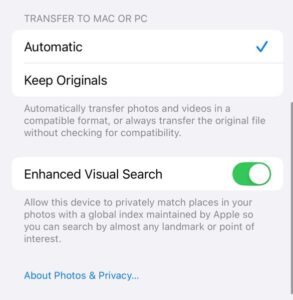
Not only knowing how to convert HEIC to JPG on Windows, this fifth method is a bonus for those of you looking for a way to convert HEIC to JPG on your iPhone.There are three quick and easy ways to convert the iPhone’s default format, HEIC, to better adapt it to multiple devices and operating systems.
- Resetting: Transfer to PC
Open Settings → then select Photos → Select Transfer
to MAC / PC → Select Automatic → The photo format will
automatically change when transferred to the PC.
- Using an Application
Similar to Windows, for iPhones, you can also use online
applications to convert HEIC to JPG. Examples of applications
Is it HEIC to JPG Converter or iMazing HEIC Converter?
Open your Browser → Select one of these online apps → Upload
the HEIC photo file → Click “Download Photo” → A download
The prompt will appear again; click it.
- Converting iPhone files to JPG format
This method can be done after downloading the online app discussed above. For example, download iMazing HEIC Converter → open the HEIC photo file → select “Share” → then “Save as JPG.”
Tips on how to convert HEIC to JPG on Windows
There are several challenges and important things to consider when figuring out how to convert HEIC to JPG on Windows. Here are the tips before converting HEIC to JPG on Windows:
- Pay Attention to Quality
When we decide on how to convert HEIC to JPGx on Windows, we need to pay attention to the quality of the conversion. The conversion to JPG will undoubtedly experience a loss of quality. From HEVC compression to lossy compression, the bit depth will decrease from 10 to 8. This means smoother colors and better gradations cannot be achieved due to this conversion. In fact, noise is often present when high compression occurs.
- Pay Attention to Metadata and Color Profiles
Choose a converter application that can process metadata properly. This way, when converting HEIC to JPG, the converter application can ensure that information remains intact and nothing is lost or changed. For example, EXIF data, color data, orientation, and camera information can all be handled properly by the converter application.
- Pay Attention to Final File Size
Unlike the HEIC format, which, despite its high quality, remains efficient in terms of file size. When converting, you need to pay attention to the final file size. Typically, converted JPG files will be larger. In other words, this conversion process involves a trade-off. To obtain a compatible JPG file, you must sacrifice high quality for the efficient final file size offered by HEIC.
Conclusion
Converting HEIC to JPG on Windows is quite easy, and you can master these methods instantly without needing deep learning. There are five methods to convert HEIC to JPG on Windows that you can try and adjust according to your needs. Even though converting this file is really easy, you still need to know the steps and the tips from this article in order to ensure that you are not doing it repetitively to get the JPG format results that you want.
Frequently Asked Questions (FAQs):
1. Was the HEIC format created and developed by the tech giant Apple?
The answer is no. The Motion Picture Expert Group (MPEG) developed and introduced the HEIC format in 2015, which Apple then adopted in 2017 in iOS 11.
2. Why did Apple, specifically the iPhone, switch to the HEIC digital image storage format?
Because the HEIC storage format offers high image quality with a small final file size—it’s efficient. Who would have thought that by early 2025, the number of Apple users, including iPhone users, would reach 2.35 billion worldwide.
3. What are the main differences between HEIC and JPG?
In terms of image quality, HEIC can produce more realistic photos, with a bit-depth of up to 10-bit color per pixel, while JPG only has 8-bit color per pixel.
4. Why do search engines record so many people starting to search for how to convert HEIC to JPG on Windows?
Because it’s a relatively new format, HEIC isn’t yet compatible with multiple versions of Windows like JPG. In other words, HEIC’s compatibility is still low.
5. Did you know that CopyTrans HEIC, IrfanView, and XnConvert are free software that can bulk convert HEIC files to JPG in one go?
Trade-Off: Converting HEIC to JPG will produce more compatible image files, but it also sacrifices quality and file size efficiency.

 Dec 17, 2025

