


2 Easy Ways to Clear Formatting in Excel
 Dec 16,2025
  By admin_chats
Excel is one of the most widely used applications for data processing, both in offices, schools, and personal businesses. However, the more we use Excel, the more formatting accumulates: inconsistent cell colors, varying fonts, number styles, random borders, highlighting, and even sometimes unnecessary hyperlinks.
As a result, these mismatched formats can make your Excel files look cluttered and difficult to read. Fortunately, there are quick ways to clean up these formats without deleting the data. This is valuable because it helps your spreadsheet remain neat, professional, and easy to understand.
In this article, we will discuss four ways on how to clear formatting in Excel, from Ribbon options, shortcuts, Format Painter, and VBA automation, along with additional tips and frequently asked questions.
What is Clear Formatting in Excel?
Clear Formats is a built-in feature in Excel. This feature works by resetting your worksheet to the standard Excel view–without deleting the data inside. In short, only the appearance is reset to the default style, while the data remains secure.
When this feature is applied, several formatting elements will revert to the standard Excel view, using Calibri 11 font with a white background and no borders—such as text styles such as bold, italic, or underline, text alignment, font type and size, text and background color (fill color), and borders.
Why is the importance of Clear Formatting in Excel?
Below are some common factors and the importance of mastering how to clear formatting in Excel.
- Copy-Paste Issues: Inconsistent Fonts, Colors, and Borders
The most common factors you need to use the Clear Formatting feature in Excel are that you are working with data from multiple sources.
When you copy data from a website, report, or database into a worksheet, the copied data usually retains its original formatting—such as fonts, background colors, or borders.
This can quickly make your Excel worksheets cluttered, inconsistent, and difficult to read. You can remove this unwanted formatting and reset to Excel’s standard style by using the Clear Formats feature.
- Cluttered Excel Worksheet: Too Many Formats
Using too many colors, font variations, and borders can make a worksheet look cluttered and difficult to read. Instead of improving clarity, excessive formatting often distracts from the important information. By using the Clear Formatting feature in Excel to remove unnecessary formatting, the data display becomes easier to understand.
- Excel Reports: More Professional
When creating reports in Excel, a clean and well-organized layout significantly impacts the reader’s impression. Reports with consistent and clean formatting appear more credible and professional. Using the Clear Formats feature, you can remove unnecessary formatting, keeping the focus on the data and analysis, rather than on distracting visual elements.
- New Design: Resetting Excel Worksheets Before Applying a New Theme
Sometimes, you may want to update the appearance of an Excel worksheet to make it more uniform, for example, by applying a company color theme or a standard report template. To achieve a clean result, the recommended first step is to remove all existing formatting using the Clear Formats feature. This creates a “clean canvas” that makes it easier to apply new formatting consistently across the entire worksheet.
The Clear Formats feature in Excel is not just a visual cleanup tool; it also helps improve the professionalism of reports and simplify data analysis. By understanding the importance of the Clear Formats feature, you will find it easier to maintain a clean, consistent, and easy-to-read worksheet.
Mastering how to clear formatting in Excel is an essential skill if you frequently work with data from multiple sources or want to create professional-looking Excel reports. Therefore, people need to know how to clear formatting in Excel to help increase productivity.
How To Clear Formatting in Excel
Basically, clear formatting in Excel is not difficult, and it can be done easily without the need to master Excel as a whole. There are two methods to make a clear format in Excel.
- How to Clear Formatting in Excel Using the Clear Menu
The easiest way to clear formatting in Excel is to use the Clear Formats button. You only need to find the Clear Formats in the Home tab, within the Editing section. These options will pop up across the top of the ribbon if your Excel window is maximized. You can follow these steps on how to clear formatting in Excel with the Clear Menu.
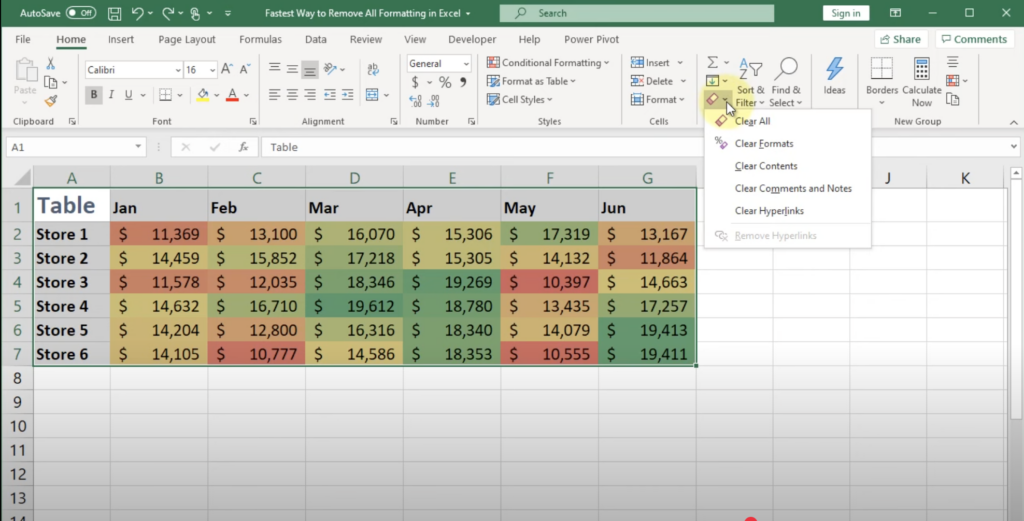
(Source: YouTube/TeachExcel)
- Step 1: Open the file.
- Step 2: Select the whole cells or column you want to clean (press Ctrl + A).
- Step 3: Go to the Home tab and take a look at the Editing section.
- Step 4: Click Clear, drop down, and select Clear Formats.
Make sure not to select Clear Contents or Clear All, as the Clear menu contains several options besides Clear Formats. So, what’s the difference?
-
- Clear Contents deletes the data or values in a cell, but keeps its formatting (e.g., font color and borders).
- Clear All deletes all data, formulas, and formatting. Clicking this option will delete the cell’s contents.
- Clear Formats removes only the cell’s formatting while preserving the data. The remaining data will revert to Excel’s default view. This is the option we’ll use.
Following the three steps above ensures that all the actual data, formulas, and table contents remain intact, while the formatting elements—such as font type, size, text style (bold, italic, underline), and cell colors—are deleted.
2. How to Clear Formatting in Excel Using Keyboard Shortcuts
The most efficient way to find out how to clear formatting in Excel is by using keyboard shortcuts. This process is less than a second—sometimes even a half a second. That’s how quick it is to remove all formatting. These are the steps on how to clear formatting in Excel using keyboard shortcuts on your device.
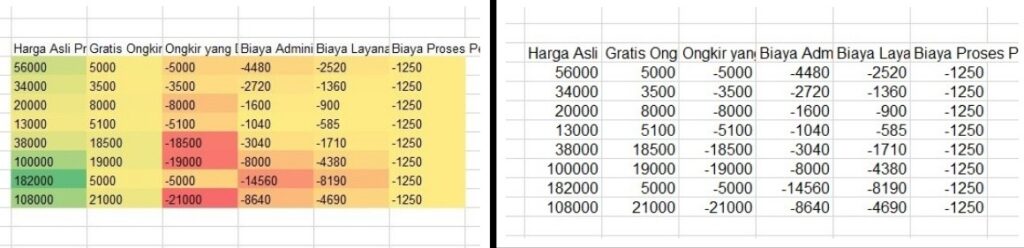
(Source: Google/ExcelDashboardSchool)
- Step 1: Click Ctrl + A in order to select all cells
- Step 2: Press Alt + H + E + F to apply Clear Formats.
Using the wrong keyboard shortcuts could clear all, which removes everything, not just formatting. Therefore, make sure to consider these conditions before using this fast, efficient, and perfect method.
- Pressing Alt + H + E + A means clear all.
- Pressing Alt + H + E + F means Clear Formats (removes only formatting).
If you accidentally make a mistake with your data (delete all your data), do not worry—you can press Ctrl+Z to undo.
How to Remove Date Formatting in Excel
When entering dates in Excel, the program often automatically applies a date format. This happens for both text and numbers. Excel recognizes dates and displays them in a readable format, even though Excel internally stores dates as numbers, counting days from January 1, 1900. Sometimes, you may need to remove the date format to see the original number or for further data processing. Here are two effective steps on how to clear formatting in Excel for dates:
1. Using Clear Formats
- Step 1: Open the file.
- Step 2: Select the cells or column containing the dates.
- Step 3: Please, go to the Home tab. Try to find the Editing section.
- Step 4: Click Clear, drop down, and select Clear Formats.
The date format will be removed, and the cell returns to the default (General) format.
This method removes all cell formatting, including borders, font color, and other styling.
2. Changing Cell Format to General
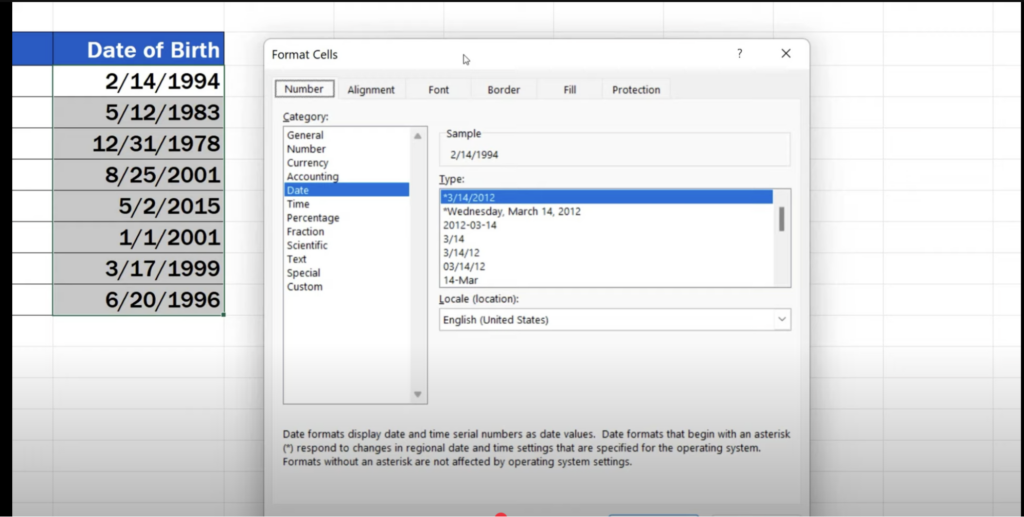
(Source: YouTube/Excel Tutorial by EasyClick Academy)
- Step 1: Select the cells or column that contains the specific dates.
- Step 2: Right-click your cursor and tap Format Cells.
- Step 3: Once the Format Cells window opens, please select the General category.
- Step 4: Click OK.
This method removes the date formatting only, keeping other cell styles like borders and background color intact. The result is that dates are displayed as numbers representing the total days since January 1, 1900.
In conclusion, by opening the Format Cells menu in Excel and selecting the General format type, you can remove date formatting without affecting other cell formatting. This method is safe, easy to use, and keeps your spreadsheet clean, organized, and professional.
How to Easily Clear Conditional Formatting in Excel
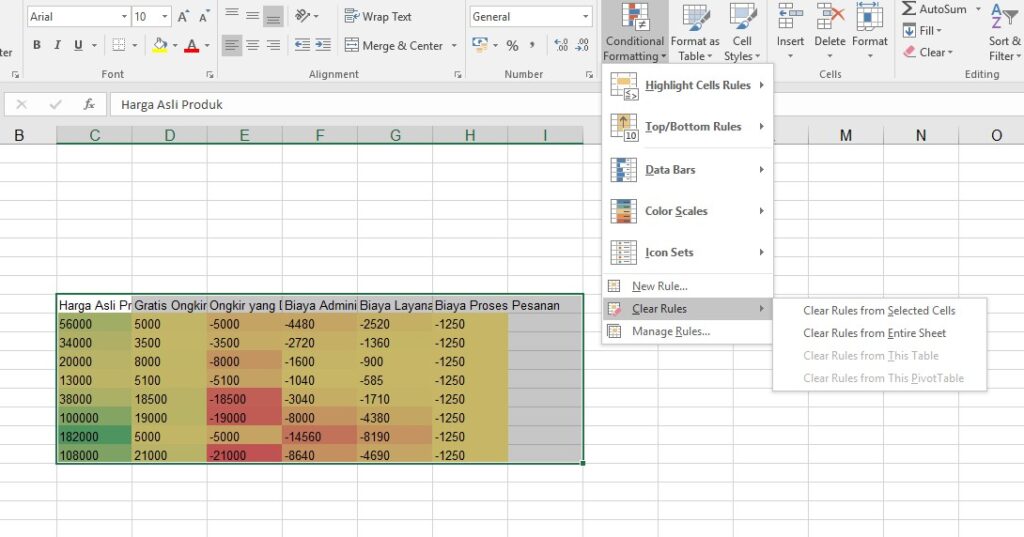
Conditional formatting is an advanced feature in Excel that allows you to automatically mark or highlight specific data. For example, displaying numbers higher than the average in red, or highlighting low values in yellow. This feature is very helpful for data analysis, but if there are too many rules, the spreadsheet looks cluttered and difficult to read. These are the step-by-step instructions on how to clear formatting in Excel, including conditional formatting:
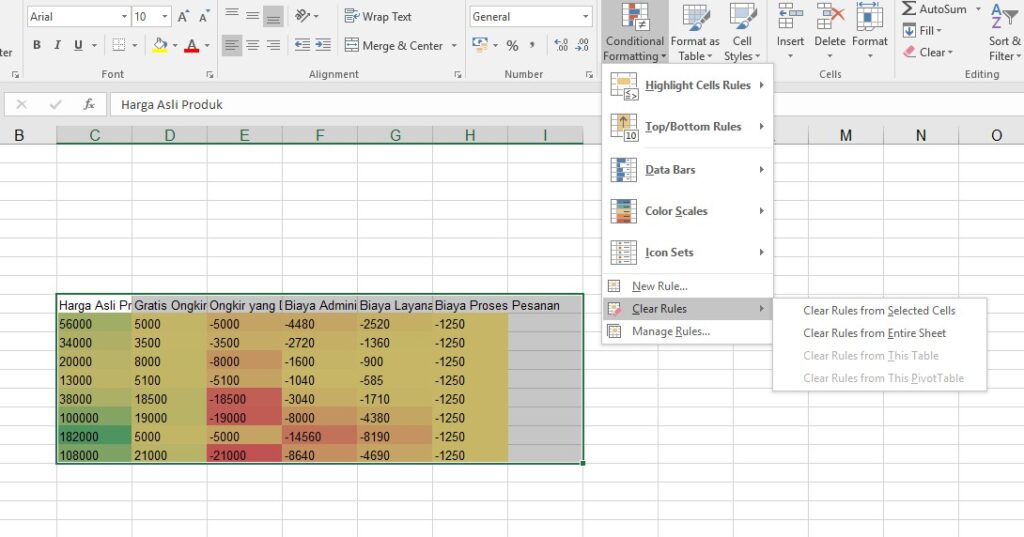
- Step 1: Please select the data from which you want to clear conditional formatting in Excel.
- Step 2: Then, find the Home tab and click the Styles section.
- Step 3: Select Conditional Formatting.
- Step 4: Click Clear Rules.
- Step 5: Select one of the options according to your needs:
- Clear Rules from Selected Cells in an Excel sheet means deleting conditional formatting only from the selected cells or area.
- Clear Rules from the Entire Sheet in Excel means deleting all conditional formatting across the entire worksheet.
After this step, all automatic rules will be removed, and the spreadsheet will return to a clean and organized state, without changing the original data. Using this method to learn how to clear formatting in Excel allows you to delete conditional formatting precisely, whether it is intended for specific cells or the entire sheet. This method is very useful for making your spreadsheets more organized, readable, and professional.
Tips and Best Practices When You Learn How to Clear Formatting in Excel
Removing formatting in Excel—whether it is cell formatting, dates, or conditional formatting—requires caution to ensure your data remains intact and your spreadsheet looks professional. Here are some key best practices to follow when you are learning how to clear formatting in Excel:
1. Do not forget to back up your data in Excel format
Before making large formatting changes, create a copy of your Excel file. Backing up the data is very useful to alleviate the risk that if anything goes wrong or data changes accidentally, you still have the original file.
2. Use a consistent theme or style
After clearing formats, apply Excel’s built-in styles or themes to maintain a clean, professional appearance. Consistent fonts, colors, and styles make your spreadsheet easier to read and understand for every person who sees it.
3. Be careful with Excel tables
Removing formats from an Excel Table may also remove previously applied table styles. Use the proper formatting method to preserve table structure and keep your data organized.
Conclusion
Anyone who works with spreadsheets on a daily basis needs to know how to clear formatting in Excel. This is not just knowledge, but an essential skill that helps address common Excel issues—such as data from multiple sources that can make reports look cluttered and difficult to read, whether in terms of fonts, background colors, or borders. Using the Clear Format feature effectively makes your worksheets look neat, professional, and easier to read.
How to clear formatting in Excel is quite simple–whether through the Clear menu, keyboard shortcuts, or by removing date and conditional formats. These techniques not only alleviate time-consuming tasks but also help keep Excel files organized and efficient. Be sure to always back up your data and apply a consistent style after clearing formatting, so you can focus on analyzing and presenting your data without being distracted by a cluttered display.
Frequently Asked Questions:
1. How do I clear formatting in Excel instantly?
Highlight the cells you want to clear, then go to Home → Clear → Clear Formats. All colors, fonts, and borders from the selected Excel sheet will be removed, but the data will remain intact.
2. What is the difference between Clear Formats and Clear All in Excel when learning how to clear formatting in Excel?
- Clear Formats: only clears the cell’s appearance (colors, fonts, borders, etc.).
- Clear All: deletes everything, including data, formatting, comments, and hyperlinks.
3. How do I delete a hyperlink in an Excel file while learning how to clear formatting in Excel?
Right-click the cell containing the hyperlink, then select Remove Hyperlink. You can also use Home → Clear → Clear Hyperlinks.
4. Can I clear conditional formatting without deleting the data?
Yes. Select the data area → Home → Conditional Formatting → Clear Rules → select from selected cells or the entire worksheet.
5. Is there a shortcut to clear formatting?
Yes. Click Alt + H + E + F (Windows). These steps will instantly clear formatting from selected cells.
6. How do I delete a specific cell style?
Select the cell → open Cell Styles → choose Normal. All custom formatting, such as table colors or custom fonts, will be removed.
7. How do I reset a table format in Excel?
Click the table → select Table Design → Clear to remove the table style, or use Clear Formats to restore the default appearance.
8. Can I clear the formatting but keep the borders?
Not directly. Clear Formats will remove all formatting, including borders. The solution: clear the formatting first, then add a border manually.
9. How do I restore the default formatting in Excel?
Use Clear Formats on the selected cells. The cell’s appearance will return to the default Excel display (Calibri 11 font, no colors or borders).
10. Tips for faster formatting removal in Excel
Add the Clear Formats button to the Quick Access Toolbar, or use the Format Painter with a blank cell as a reference for default formatting.

 Dec 17, 2025

