


10 Multiple Ways to Unprotect an Excel Sheet Easily
 Dec 16,2025
  By admin_chats
Protecting an Excel sheet is a common thing nowadays. This is an important decision in order to ensure that data within the file is protected and is not used to manipulate the data, especially for a file that should be shared with others. It cannot be avoided that there is a risk that someone tried to remove data from a shareable Excel sheet. Hence, the protected Excel sheet is important to retain data and thwart fraudulent activities.
However, a protected Excel sheet sometimes presents hurdles to editing, especially for a work colleague. This would be a problem if your colleague does not know the password or needs to change the data in a rush. Besides, not rarely, people are trying to look for ways to unprotect an Excel sheet and unlock an Excel sheet from the specific protection due to forgetting the password.
This article will give you 10 multiple ways to unprotect an Excel sheet from protection. However, you should use these steps in the right manner because there is some legality to changing the protected Excel sheet. Check these 10 multiple ways to unlock the protection on an Excel sheet with or without a password below.
How to unprotect an Excel sheet when you obtain the password
In order to protect an Excel sheet, it is quite easy if you have the password from the file administrator or the person who created the specific Excel file. This will help you easily type the password to unlock the protection. However, you need to ask the administrator or the person who made the protection on the Excel sheet for the password before editing the data on the Excel sheet.
On the other hand, unlocking an Excel sheet with a password is a legal way to edit documents because you have permission from the person who made this file. Thus, you do not need to use the complicated method to unlock an Excel sheet by knowing the password. These are the steps for how to unprotect an Excel sheet with a password using eight different applications:
How to unprotect an Excel sheet with a password using Microsoft Excel
(Source: YouTube/Technology for Teachers and Students)
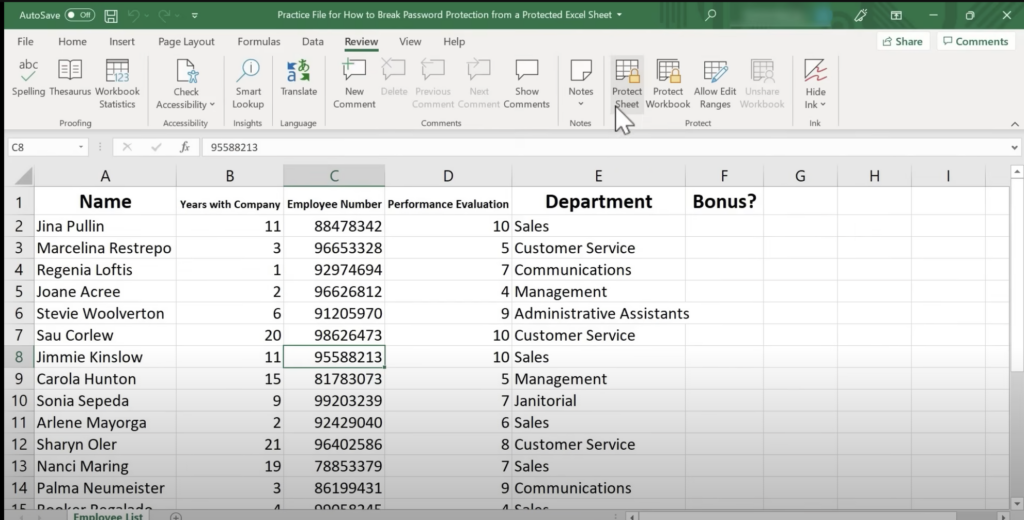
Microsoft Excel is a well-known calculation and editing data tool from Microsoft Office. Not only useful for protecting the Excel file, but this application will also help you to unlock an Excel sheet file. These are the steps to unlock an Excel sheet with a password using Microsoft Excel.
- Step 1: The first step is uploading your specific protected Excel format file to Microsoft Excel.
- Step 2: Once it opens, you can check the Review tab on the upper side of the Microsoft Office sheet.
- Step 3: After the Review is open, choose the Unprotect Sheet button.
- Step 4: Then, the pop-up of Unprotect Sheet opens, and type the password.
- Step 5: Click OK, and the file can be edited.
How to unprotect an Excel file with a password using OpenOffice Calc
(Source: YouTube/aMacxd)
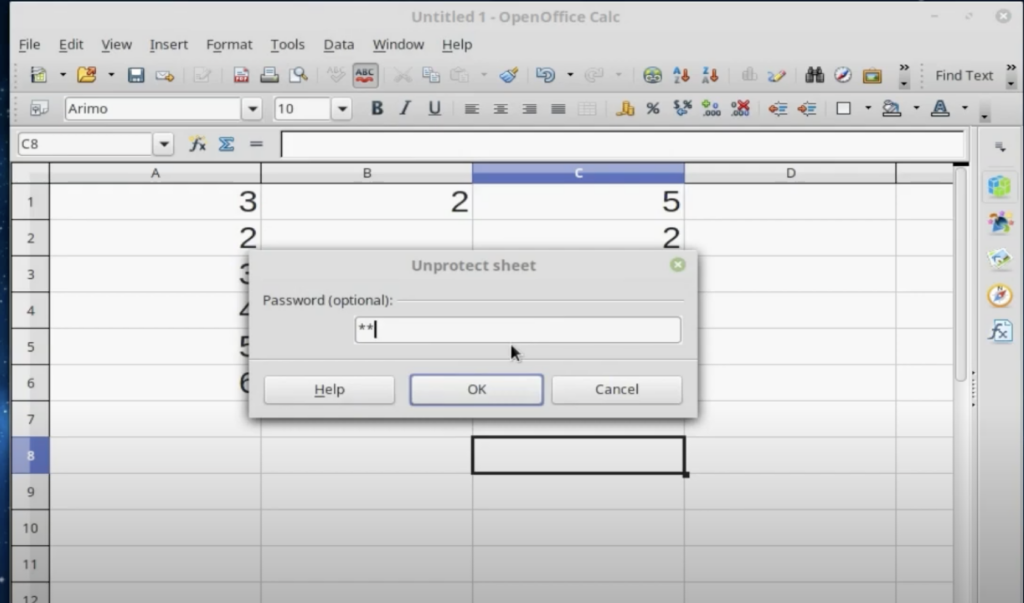
OpenOffice Calc is one of the widely used calculation and data editing tools from Apache OpenOffice. This application provides many features to help the user organize, calculate, and analyze data. OpenOffice Calc also has a feature to protect and unprotect the files. These are the steps for how to unprotect an Excel sheet with a password using OpenOffice Calc.
- Step 1: Open your specific protected file on your computer or laptop using OpenOffice Calc.
- Step 2: Then, click the Tool option in the upper-hand of the application.
- Step 3: Find the Protect Document button and choose Sheet. If you want to open the protected document, you can choose the Document option.
- Step 4: Once you have clicked Sheet, it will show a pop-up of Unprotect Sheet.
- Step 5: After that, you just need to type your right password and click OK. Then, you can edit the data on your Excel sheet.
How to unprotect an Excel sheet with a password using Zoho Sheets
(Source: YouTube/Zoho Sheets)
(Source: YouTube/Zoho Sheets)
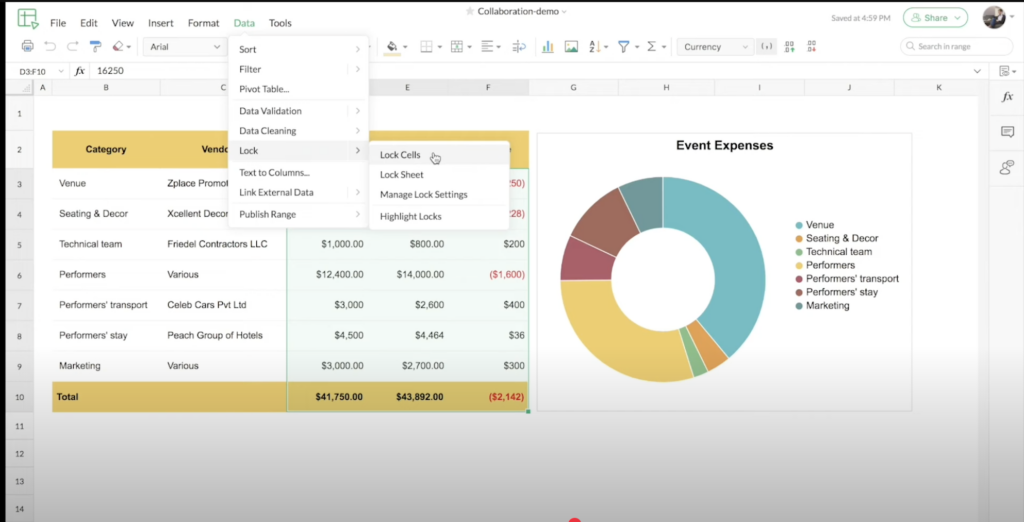
Zoho Sheets is not very common, but it is widely used by Zoho Office and CRM users. This application is similar to other spreadsheet applications, which can be used for organizing, calculating, and analyzing data. Zoho Sheets is also applicable to protect and unprotect an Excel-format sheet. These are the step-by-step instructions on how to unprotect an Excel sheet with a password with Zoho Sheets.
- Step 1: Open your selected file from your computer or cloud storage in Zoho Sheets.
- Step 2: Once the file is open, find the Data option in the upper-hand of the application.
- Step 3: Choose the Lock option and click the Manage Lock Settings.
- Step 4: Afterwards, there is a list of collaborators in this document. Unlock the particular person who can edit this sheet.
- Step 5: Then, this sheet can be edited by that person.
How to unprotect an Excel file with a password using WPS Spreadsheets
(Source: YouTube/WPS Office)
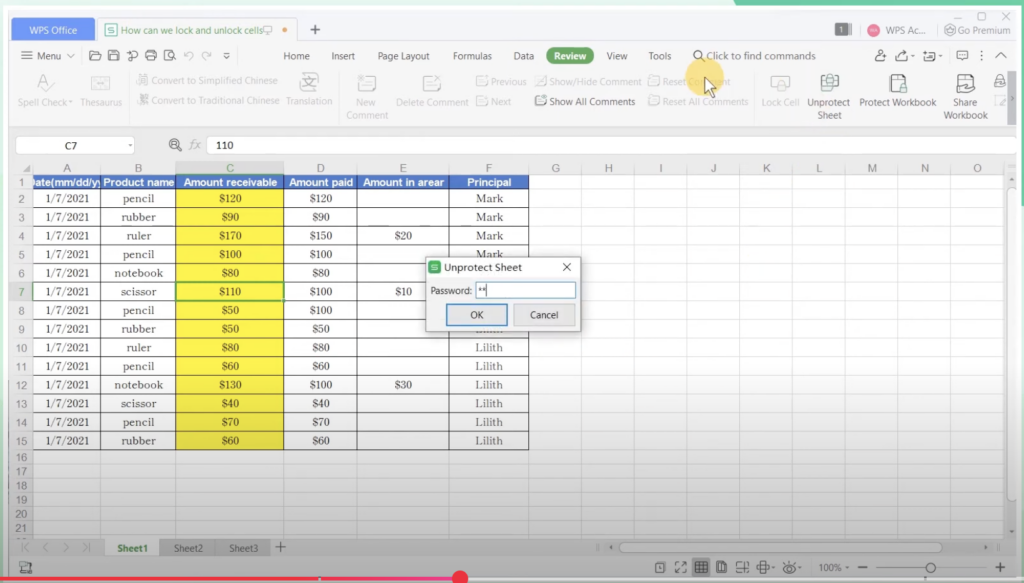
WPS Spreadsheets is a spreadsheet application from WPS, and it is part of the WPS Office. This WPS application is quite similar to other spreadsheet applications that are available on the market, such as Microsoft Excel. By using WPS Spreadsheets, you can edit or even protect and unprotect an Excel-format file. These are the steps for how to unprotect an Excel sheet with a password using WPS Spreadsheets.
- Step 1: Open the protected file in the WPS Spreadsheet on your computer or laptop.
- Step 2: Then, find the Unprotect Sheet button on the upper right of WPS Spreadsheet.
- Step 3: Once the pop-up of Unprotect Sheet is open, you can enter the right password.
- Step 4: Then, click OK.
- Step 5: You can edit your specific sheet or document.
How to unprotect an Excel sheet with a password using MobiSheets
(Source: Support.MobiSystem)
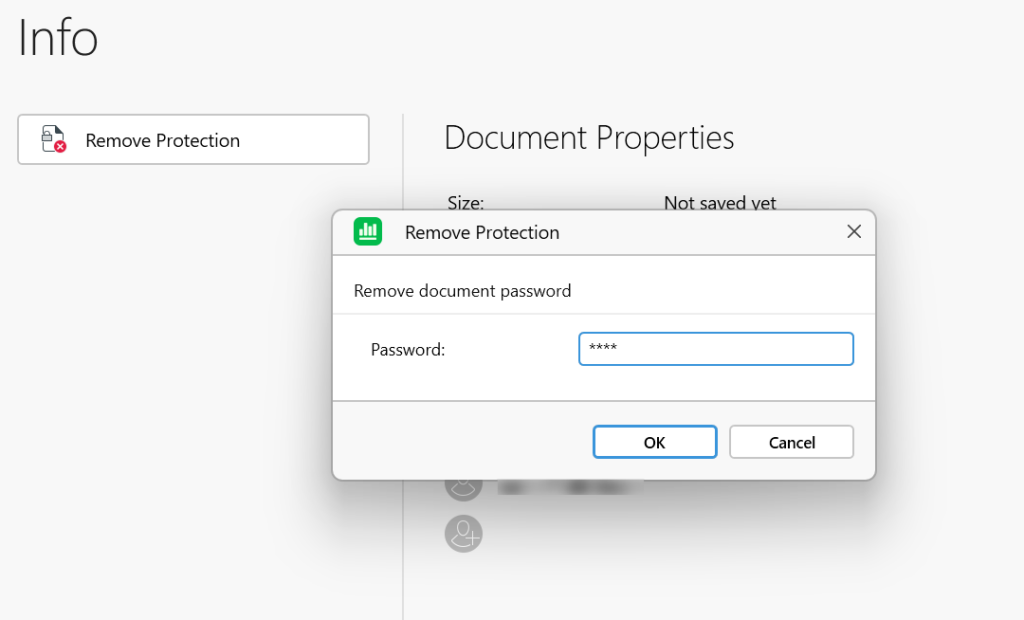
MobiSheets is a spreadsheet application that is quite common these days and part of the MobiOffice alongside MobiDocs and MobiSlides. This application is useful for organizing, editing, calculating, and analyzing data. MobiSheets can be used as a tool to unprotect an Excel document. These are the steps for how to unlock an Excel sheet with a password using MobiSheets.
- Step 1: Open MobiSheet and upload your protected file into this application.
- Step 2: Click the File option in the upper left corner of the MobiSheets application.
- Step 3: Please choose the Remove Protection and click Info.
- Step 4: Subsequently, tap Remove Protection and type the right password.
- Step 5: You can edit your Excel format file using the MobiSheet application.
How to unprotect an Excel sheet with a password using Apple Numbers
(Source: YouTube/Tech Leveller)
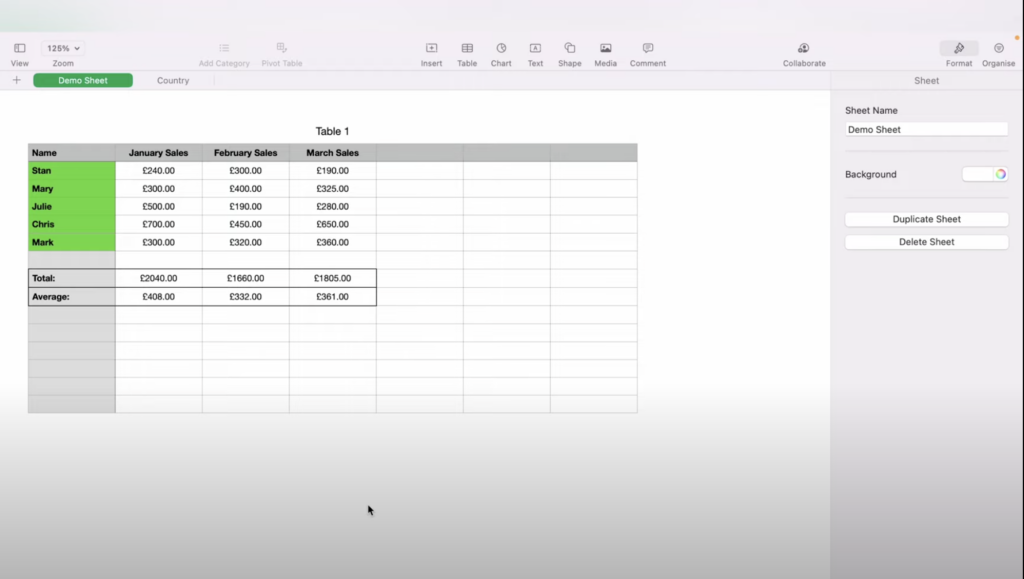
Numbers is a default spreadsheet application from Apple. This application is quite powerful, even though it is not as widely used as other similar applications. However, Apple Numbers is applicable to protect and unprotect an Excel-format sheet with a password. These are the steps for how to unlock an Excel sheet with a password using Apple Numbers.
- Step 1: Open the specific file that has been protected on your Numbers.
- Step 2: Once it opens, you can click the Arrange button on the upper hand of the Numbers application.
- Step 3: Then, find the Unlock option and click it.
- Step 4: You can directly edit a specific sheet in your Excel document.
- Step 5: If you want to unlock the document, you can choose the unlock option by clicking the file name.
How to unprotect an Excel sheet with a password using OnlyOffice
(Source: YouTube/OS-College)
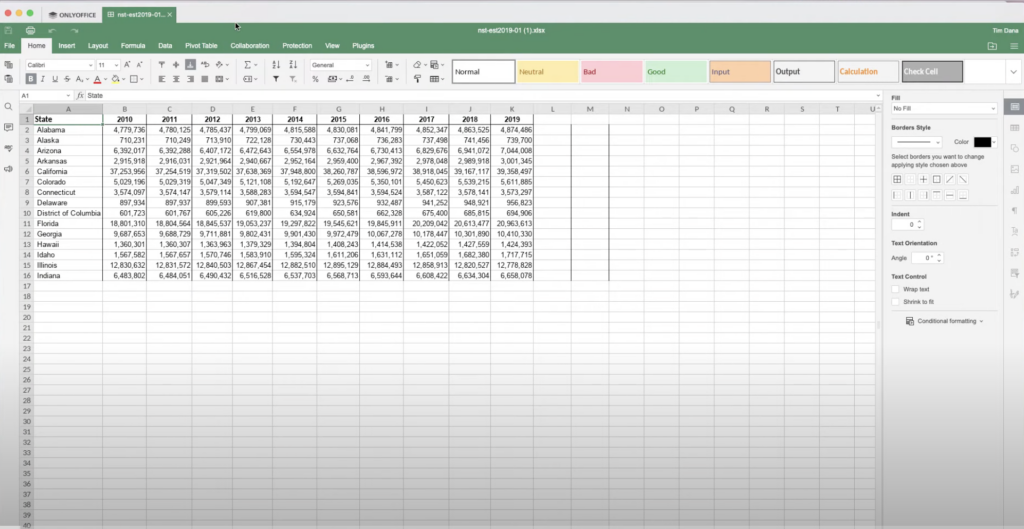
OnlyOffice Spreadsheet Editor is a spreadsheet application from OnlyOffice. Even though this application is not as common and widely known as the competitor, it actually provides quite robust features. This OnlyOffice application can also be used for protecting and unprotecting the Excel-format files. These are the steps for how to unlock an Excel with a password using OnlyOffice Spreadsheet Editor.
- Step 1: Open the OnlyOffice Spreadsheet Editor on your computer
- Step 2: Choose the specific file that has been protected.
- Step 3: Then, OnlyOffice Spreadsheet Editor will directly request permission to enter the password.
- Step 4: Press the password to the pop-up button.
- Step 5: The file can be opened and edited using OnlyOffice Spreadsheet Editor.
How to unprotect an Excel sheet with a password using LibreOffice Calc
(Source: Youtube/Office Nifty)
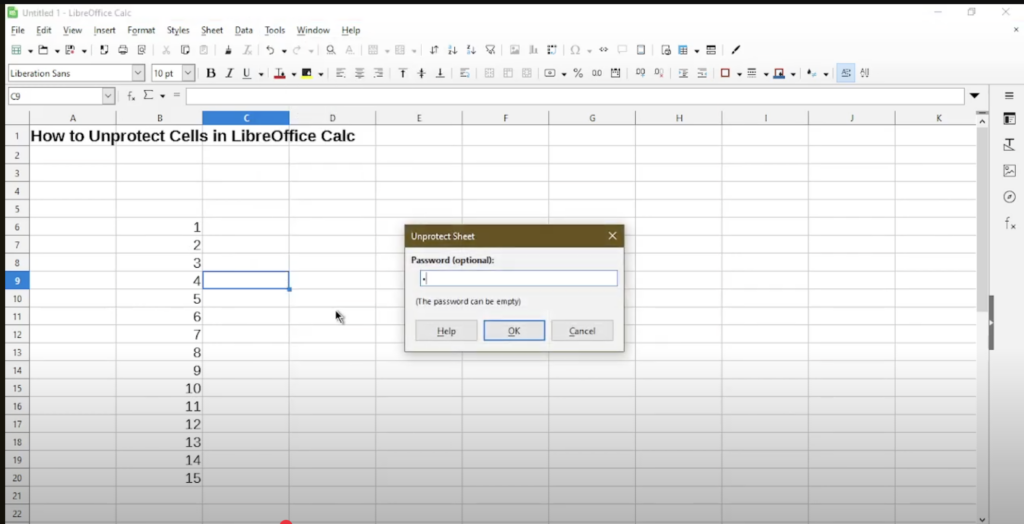
LibreOffice Calc is a spreadsheet application developed by LibreOffice alongside LibreOffice Writer and LibreOffice Impress. Similar to other spreadsheet applications, LibreOffice Calc provides numerous features, including protecting and unprotecting Excel sheets. These are the steps for how to unlock an Excel sheet with a password using LibreOffice Calc.
- Step 1: Open your protected file from your file storage using LibreOffice Calc on your personal computer or laptop.
- Step 2: Once your protected file is open. You can choose the Tool option on the tab bar.
- Step 3: After that, select the Protect Sheet.
- Step 4: Then, you can directly type the password and click the OK button below.
- Step 5: You can edit data from a certain sheet.
How to unprotect an Excel sheet without a password
Using a password is the express way to open the protected file. If you do not have the password, there are still ways to open certain Excel sheets. However, opening the protected file is not as easy as obtaining the password, similar to the above tutorials, due to the security measures implemented on the file. This Excel file should be protected in order to prevent manipulation and other fraudulent activities, particularly on the secret data of the companies, which obviously contains sensitive information.
The strict protection in our file is a requirement, but sometimes we also need to open the protection of an Excel sheet without a password. This happens when we encounter some of the unpredictable situations, such as when we forget the password that we have created. This situation sometimes makes us annoyed, especially when we really need to open or edit a specific Excel document. Therefore, we can help you open an Excel sheet without a password. These are the two steps of how to unprotect an Excel sheet without using a password.
How to unprotect an Excel sheet using Google Sheets
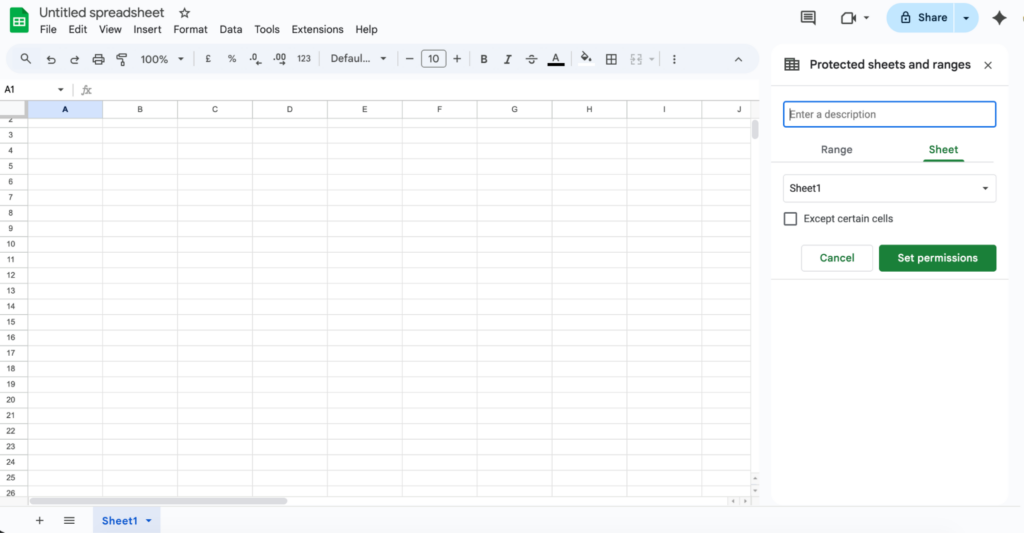
Google Sheets is one of the most widely used calculation and data editing tools these days. This application is part of the Google Workspace, which is already known for its reliability and convenience. Similar to the competitors, such as Microsoft Excel, this application can also be used for protecting and unprotecting an Excel format file (.xlsx). These are the steps for how to unprotect an Excel sheet without a password using Google Sheets.
- Step 1: Put your protected Excel file (.xlsx) in the Google Drive before opening it in Google Sheets.
- Step 2: Then, open your locked Excel file in Google Sheets.
- Step 3: After the file is open, all of the protection from the Google Sheets will be removed. This happened because Google Sheets and Microsoft Excel have different protection. Therefore, the protection from Excel will be removed automatically.
- Step 4: You can edit your Excel file as you need.
- Step 5: Save back into the Excel file (.xlsx) to open it back into the Excel file.
The method above can only be used for files with an Excel format (.xlsx) that opened in Google Sheets. However, as we know, nowadays, many people also use files directly from Google Sheets. There is a way to remove protection from a file other than (.xlsx) with Google Sheets, such as a comma-separated value (.csv), and also protection of sheets and ranges within Google Sheets.
- Step 1: Please select the specific file from the Google Drive and open it in Google Sheets.
- Step 2: After Google Sheets opens, you can find the Data on the upper tab and choose the Protect sheets and ranges.
- Step 3: After that, the Protect sheets and ranges are open on the right-hand side of the application.
- Step 4: Choose the specific protection based on ranges or sheets. Then, click the trash icon in order to remove the protection.
- Step 5: There will be a pop-up to ensure that you want to remove the protection or not. Then click the Remove button.
- Step 6: Finally, the file protection is deleted. You can edit a spreadsheet file.
How to unprotect an Excel sheet using PDFelement
(Source: YouTube/Wondershare PDFelement)
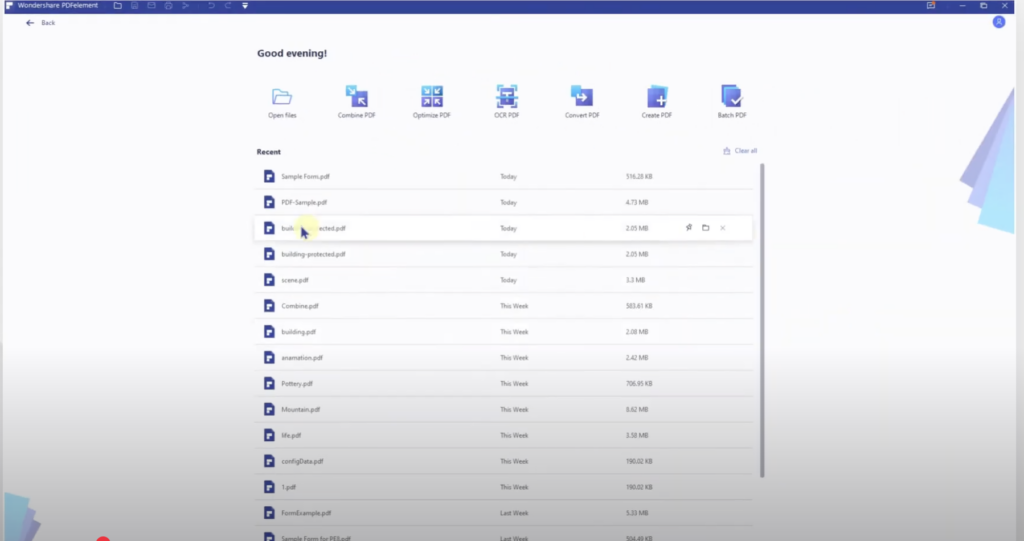
Other than Google Sheets, there is another way to unprotect an Excel sheet without a password using an application called PDFelement. You do not have to be worried because this PDF editor can also be used for opening other formats, in addition to the PDF format. This method is quite easy because you only need to install this application on your computer, as this app provides a free account. These are the steps for how to unprotect an Excel sheet without a password using PDFelement.
- Step 1: If you do not have PDFelement, you can install it first on your computer before using it. There is a free account of PDFelement that can be directly downloaded and installed on your personal computer.
- Step 2: Open PDFelement on your computer.
- Step 3: Click the Create PDF to open the protected Excel file on your computer.
- Step 4: The protected Excel file will be converted into a PDF and cannot be opened. The protection from Excel will be removed automatically, and you can see the information in the specific file.
- Step 5: You can edit the file using the PDFelement full account in order to change some of the Excel sheet. Then, click Save As to make this file still in the PDF format.
- Step 6: In order to open again on Microsoft Excel, you need to convert back into Excel format (.xlsx).
Disclaimer for using tutorials of an unprotected Excel sheet without a password
This trick is a way to help you remove the protection by bypassing the protection system in Microsoft Excel. However, this method should be used only in case of a dire situation, such as forgetting the password, etc. If you are forgetting your own password for your own file, that is totally fine because it is your file, and you have the authorization for that data within the Excel file.
Otherwise, we do not recommend it if you want to use it as a way to bypass the law and conduct some fraudulent activities. Bypassing the password of a protected file will be a breach of the law for the companies due to the sensitive information. Thus, we recommend that you be wise to use this tutorial, especially when you do not have a password and permission to open and edit the data.
Conclusion
As we know, our Excel file contains sensitive information, and protecting the file is important to prevent the misuse of our data, especially an Excel file or sheet that needs to be shared with others. However, sometimes we have to acknowledge our recklessness, including forgetting the password of our Excel file. Therefore, we provide these methods to ensure that you know how to open your Excel file.
If you have the password, that would be fine, and you can enter it directly. Otherwise, if you forget the password, the method is quite complicated in order to bypass the password and protections. On the other hand, Microsoft Excel is evolving to ensure that its protection cannot be opened easily. Thus, we always recommend that you ensure that you remember your password and write it in your notebook or on other platforms before creating the password for protection.
Frequently Asked Questions (FAQs)
Why do people protect an Excel sheet?
People need to protect an Excel sheet to ensure the data and information within the file is secured. This protection is restricted who are the person that can change or only see the data. The protection is commonly used by companies or government agencies for certain data or information that needs to be shared with other parties.
Why do we need to know how to unprotect an Excel sheet?
We need to know how to unprotect an Excel sheet because the methods of removing protection on every application are different from each other. Most of the applications are quite easy if you have a password. On the other hand, if you do not have the password, you need to use a more complicated way to unlock an Excel sheet.
Can we unprotect an Excel sheet offline?
Yes, most of the applications for unlocking the protections of an Excel sheet can be used offline and do not require an internet connection. However, most of the applications to unprotect an Excel sheet offline require a premium account, such as PDFelement, Microsoft Excel, etc
Which is the easiest way to unprotect Excel sheets?
There are easy ways to unlock protection from an Excel sheet if you have obtained the password. The methods are quite easy because they only need to find the specific button to remove the protection in an Excel sheet. Using Google Sheets to unprotect spreadsheet files is also considered an easy way because it does not require a specific method or paying for a premium account.
Which is the most common way to unlock the protection from an Excel sheet?
The most common ways to remove the protection from an Excel file or sheet are by knowing the password or having the authorization from the person who created the Excel file. Not only does it make it easier, but it is a legal way to unlock the protection of an Excel sheet.
Can we unprotect an Excel sheet for free?
Yes, we can unlock the protection from an Excel file or sheet freely. We can use Google Sheets to remove the protection from the Microsoft Excel file format (.xlsx). However, you need an internet connection in order to unprotect the Excel sheet.

 Dec 17, 2025

